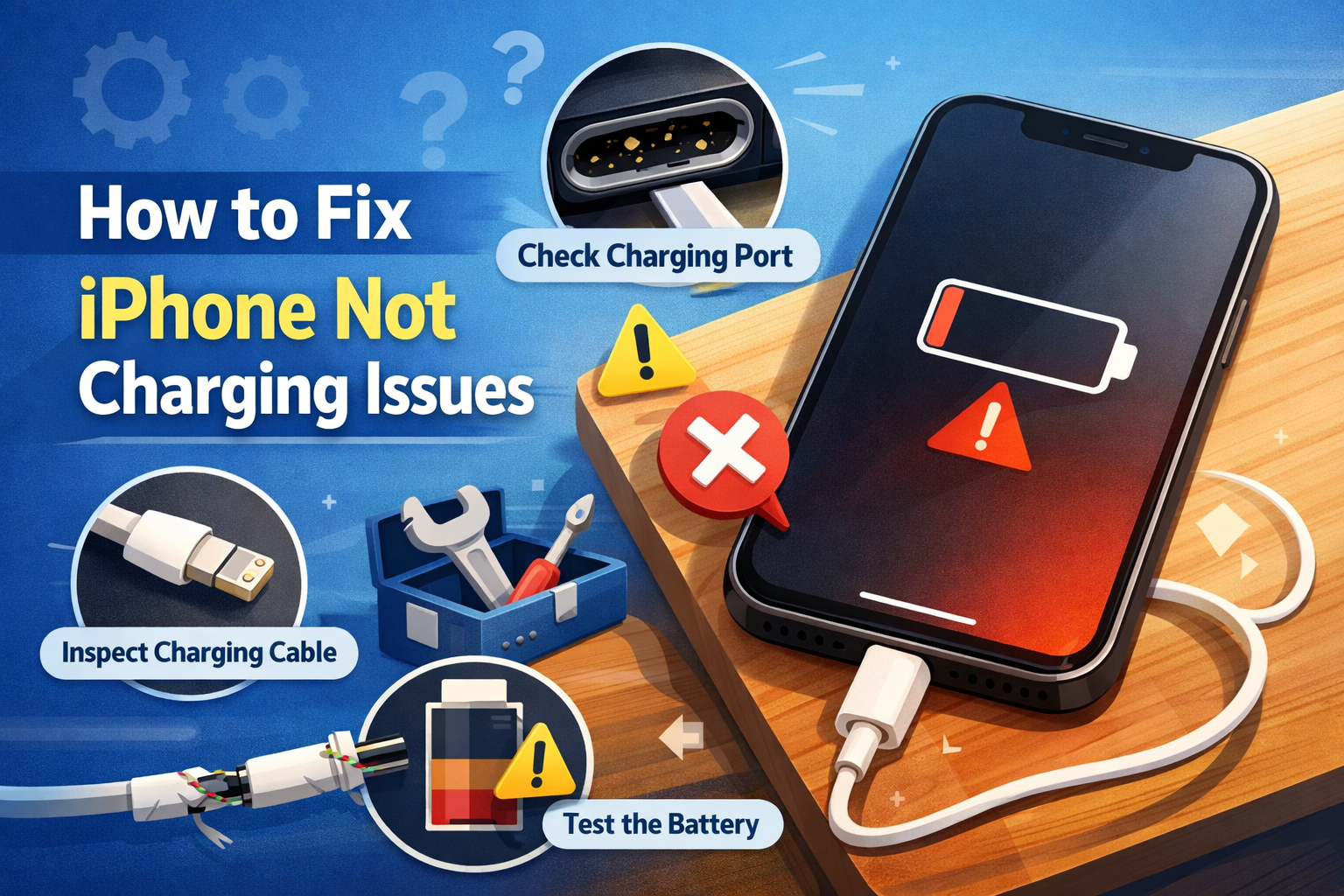
How to Fix iPhone Not Charging Issues
If your iPhone not charging issues are driving you crazy, you’re not alone. Many iPhone users face this problem at least once—plugging in the cable and seeing nothing happen. Sometimes the battery icon doesn’t move, sometimes it flashes, or the phone heats up but still doesn’t charge. The good news? Most iPhone charging problems are easy to fix at home, even if you’re a beginner.
In this guide, you’ll learn step-by-step solutions to fix iPhone not charging issues, using simple language and real-world examples. We’ll start with quick checks and move to deeper fixes, so you can stop worrying and get your iPhone charging normally again.
Why Is My iPhone Not Charging?

Before fixing the problem, it helps to understand why it happens. Common reasons include:
- Dirty or blocked charging port
- Faulty charging cable or adapter
- Software bugs or system glitches
- Battery health issues
- Overheating or temperature warnings
Let’s fix them one by one.
Step 1: Check Your Charging Cable and Adapter
Why this matters
A damaged cable or adapter is the most common cause of iPhone not charging issues.
What to do
- Unplug your charging cable from the phone and power source
- Look closely for:
- Frayed wires
- Bent or broken connectors
- Loose cable ends
- Try a different cable (preferably an original or certified one)
- Try a different power adapter
- Plug into a wall outlet instead of a laptop or power bank
Real-world example
You plug your iPhone in at work and it doesn’t charge. At home, it works fine. The issue isn’t your phone—it’s the office charging cable.
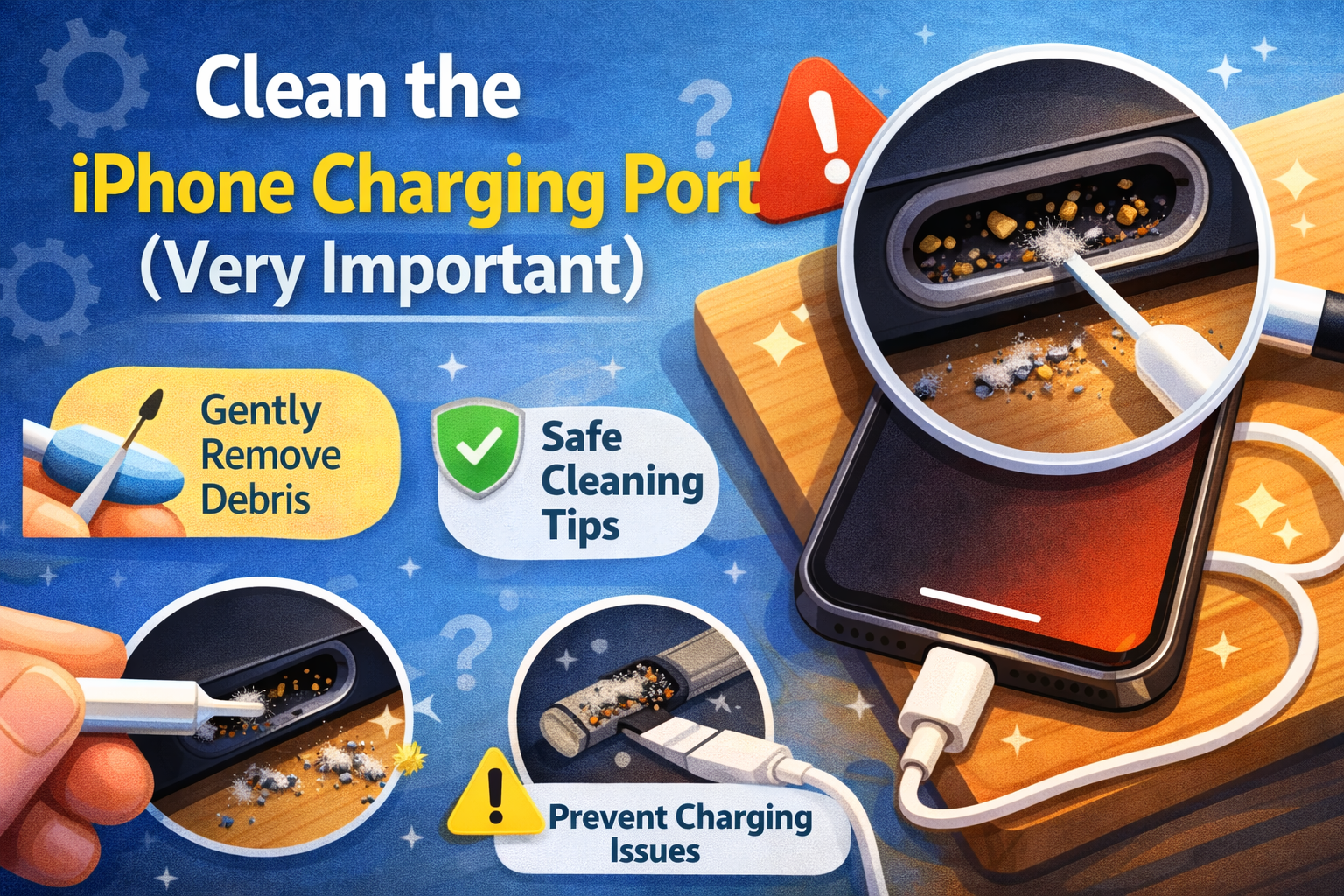
Step 2: Clean the iPhone Charging Port (Very Important)
Why this matters
Dust, lint, and pocket debris can block the charging connection.
How to clean safely
- Turn off your iPhone
- Use a wooden toothpick or plastic pick
- Gently scrape inside the charging port
- Remove visible lint and dust
- Blow gently or use compressed air (optional)
Do not use metal pins or needles—they can damage the port.
Real-world example
Your iPhone only charges when the cable is pushed at an angle. After cleaning the port, it starts charging normally again.
Step 3: Restart Your iPhone
Why this works
Temporary software bugs can cause iPhone not charging issues.
Steps to restart
- iPhone with Face ID:
- Press and hold Side button + Volume button
- Slide to power off
- Wait 30 seconds, then turn it back on
- iPhone with Home button:
- Press and hold Power button
- Slide to power off
- Turn it back on after 30 seconds
This simple step fixes many charging problems.
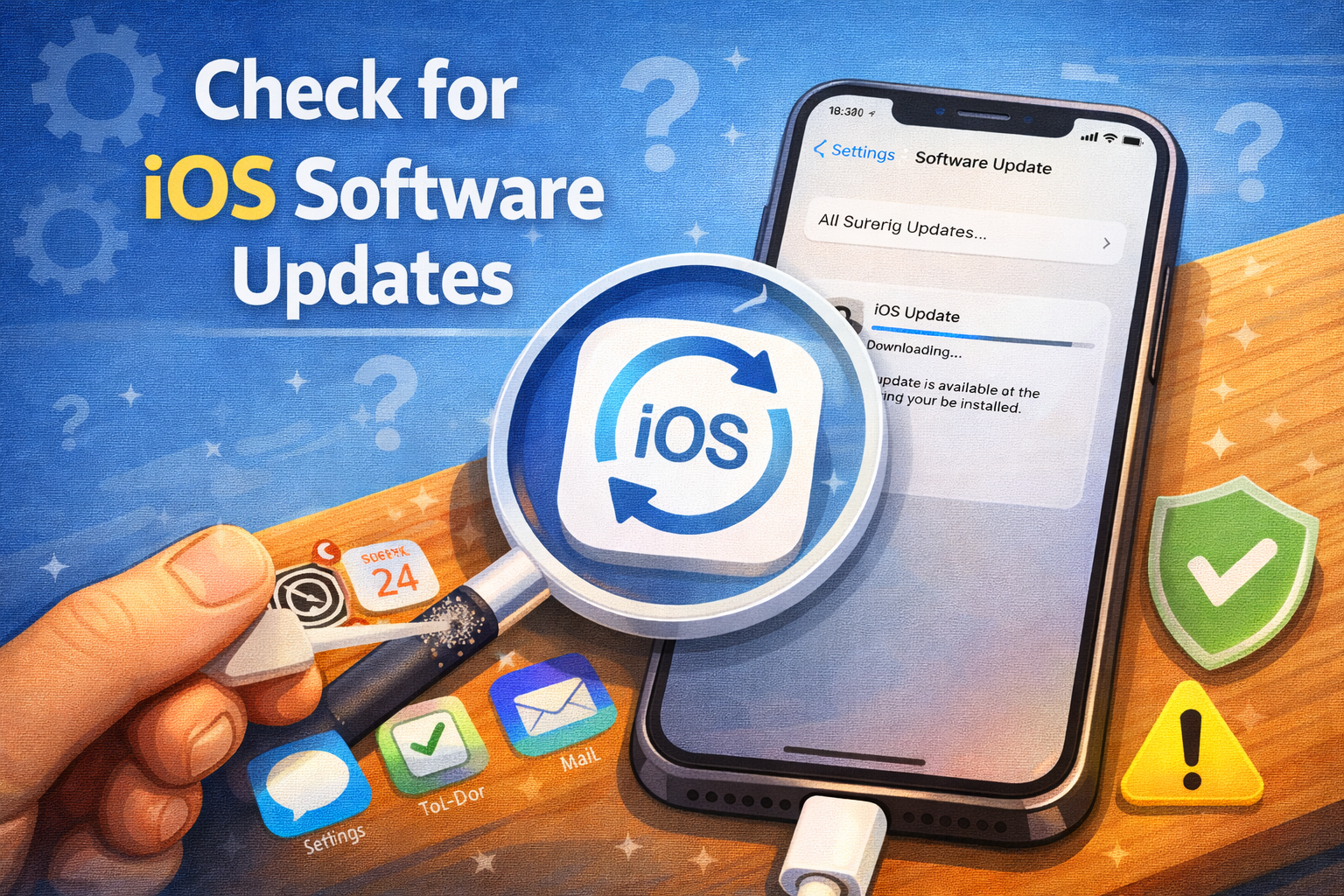
Step 4: Check for iOS Software Updates
Why this matters
Outdated software can cause charging bugs.
How to update
- Go to Settings → General → Software Update
- Download and install any available update
- Restart your iPhone after updating
Real-world example
After updating iOS, your iPhone suddenly starts charging faster and more consistently.
Step 5: Try Wireless Charging (If Available)
Why this helps
Wireless charging helps you identify whether the charging port is damaged.
What to do
- Place your iPhone on a wireless charger
- If it charges wirelessly but not with a cable, the port may be the issue
This doesn’t fix the problem, but it helps diagnose it.
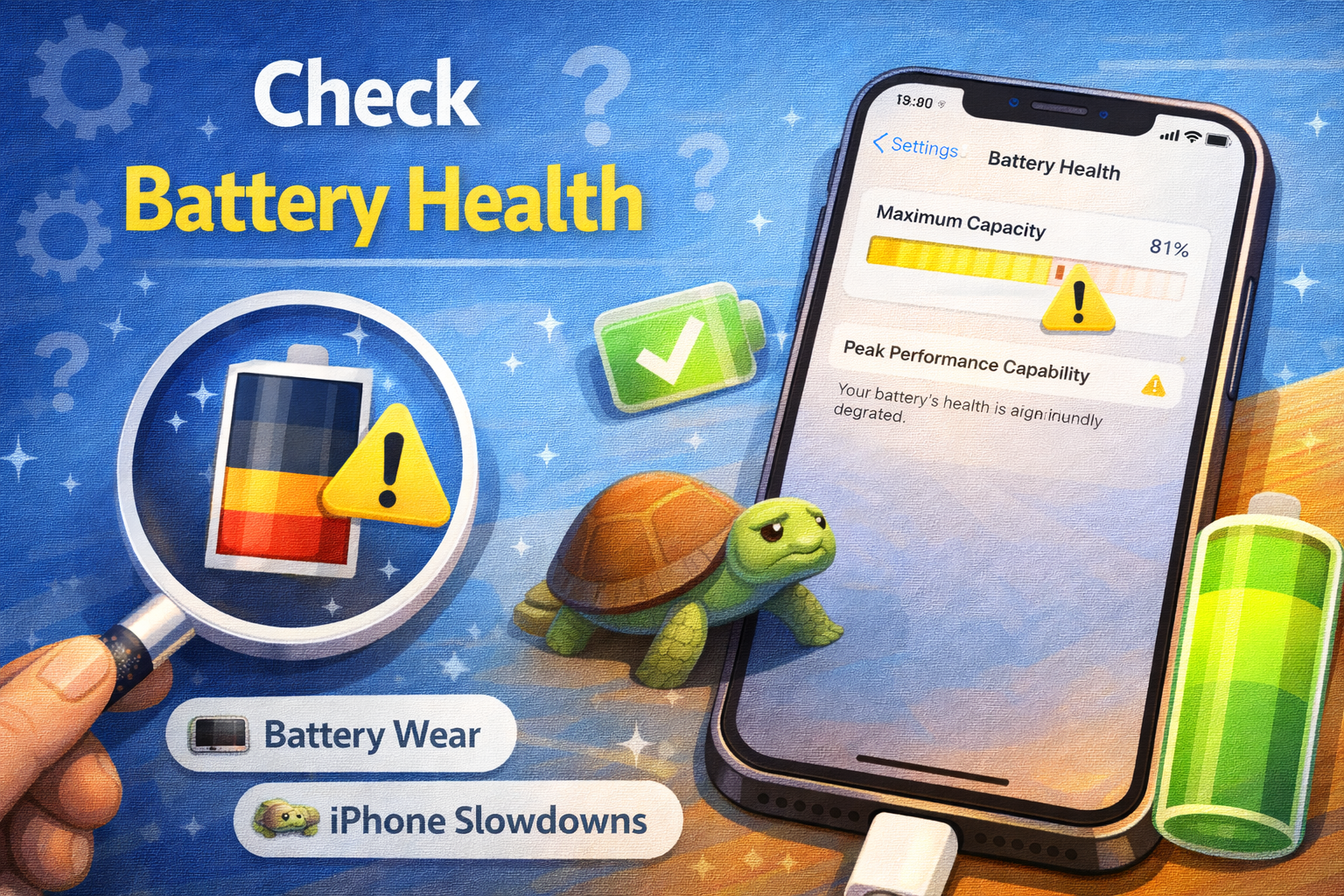
Step 6: Check Battery Health
Why battery health matters
An old or degraded battery may refuse to charge properly.
How to check battery health
- Go to Settings → Battery → Battery Health & Charging
- Look at Maximum Capacity
- 80% or higher = normal
- Below 80% = battery may need replacement
Real-world example
Your iPhone charges very slowly and dies quickly. Battery health shows 72%. Replacing the battery solves the issue.
Step 7: Avoid Overheating While Charging
Why temperature matters
iPhones stop charging if they get too hot or too cold.
Tips
- Remove thick phone cases while charging
- Don’t charge under pillows or blankets
- Avoid charging in direct sunlight
- Let the phone cool down before plugging in
You may see a temperature warning when overheating causes iPhone not charging issues.
Step 8: Reset All Settings (Safe Option)

Why this helps
Incorrect settings can interfere with charging.
How to reset settings
- Go to Settings → General → Transfer or Reset iPhone
- Tap Reset → Reset All Settings
- Enter your passcode
This does not delete your data.
Step 9: Inspect the Charging Port for Damage
Signs of port damage
- Cable feels loose
- Charging disconnects easily
- iPhone only charges at certain angles
If you see these signs, the port may need professional repair.
Step 10: When to Visit a Repair Shop
If none of the steps above fix your iPhone not charging issues, it’s time to get expert help.
Go to a repair shop if:
- The charging port is physically damaged
- Battery health is very low
- The phone was exposed to water
- Charging fails with all cables and chargers
Common Mistakes to Avoid
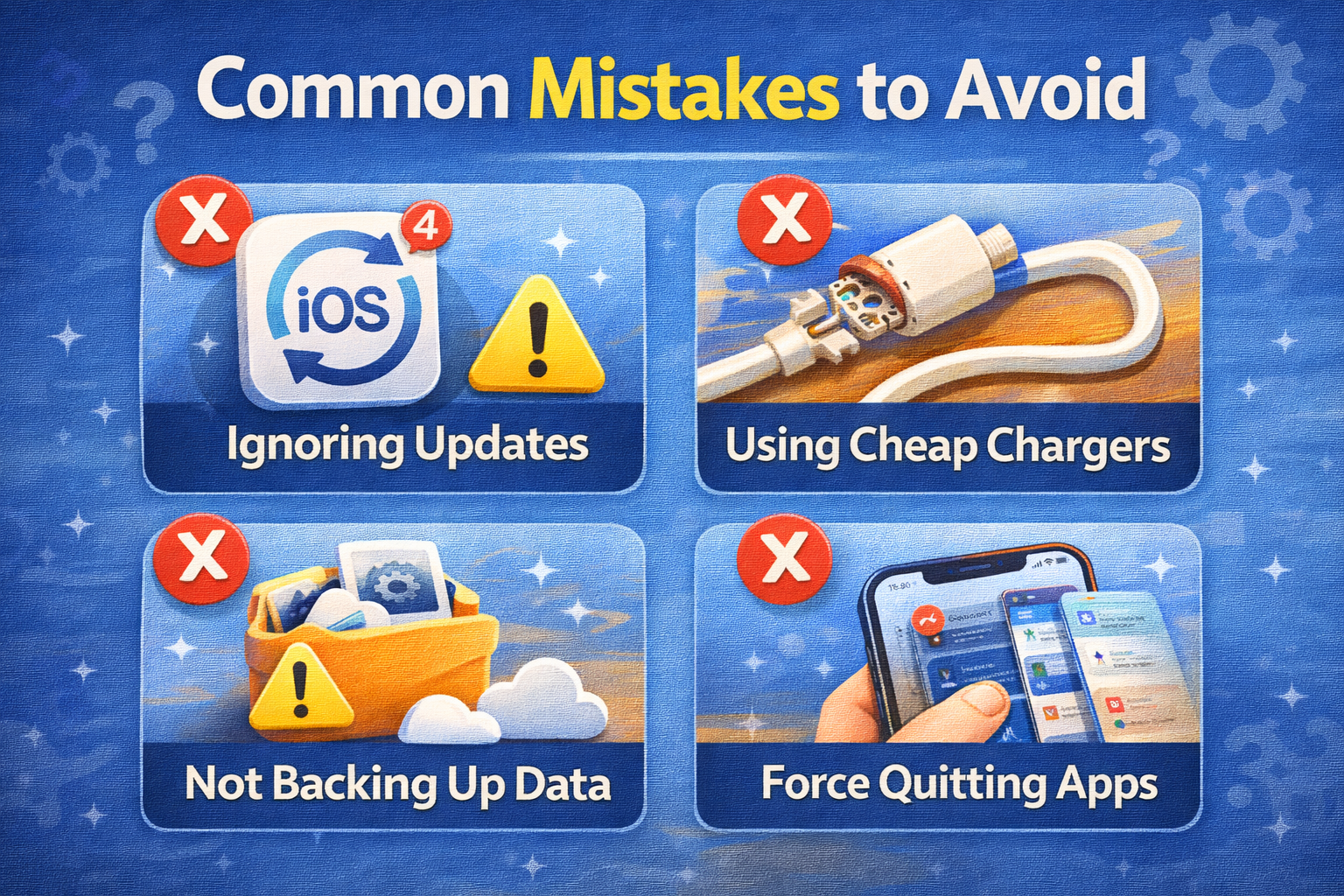
- Using cheap, uncertified cables
- Cleaning the port with metal tools
- Ignoring battery health warnings
- Charging while gaming or heavy use
Avoiding these mistakes can prevent future charging problems.
Frequently Asked Questions (FAQ)
1. Why is my iPhone charging very slowly?
Slow charging is usually caused by a weak adapter, damaged cable, dirty port, or poor battery health.
2. Can a software bug cause iPhone not charging issues?
Yes. Restarting the phone or updating iOS often fixes software-related charging problems.
3. Is it safe to clean the charging port myself?
Yes, as long as you use a wooden or plastic tool and do it gently.
4. Why does my iPhone charge only when turned off?
This often points to software issues, overheating, or battery degradation.
5. Should I replace the battery or the charging port?
If wireless charging works, the port is likely the problem. If battery health is low, replace the battery.
Conclusion
Dealing with iPhone not charging issues can be stressful, but most problems have simple solutions. By checking your cable, cleaning the charging port, updating software, and monitoring battery health, you can fix the issue without spending money. If all else fails, a professional repair can quickly get your iPhone charging like new again.
Try these steps in order, and chances are your iPhone will be back to charging normally today.