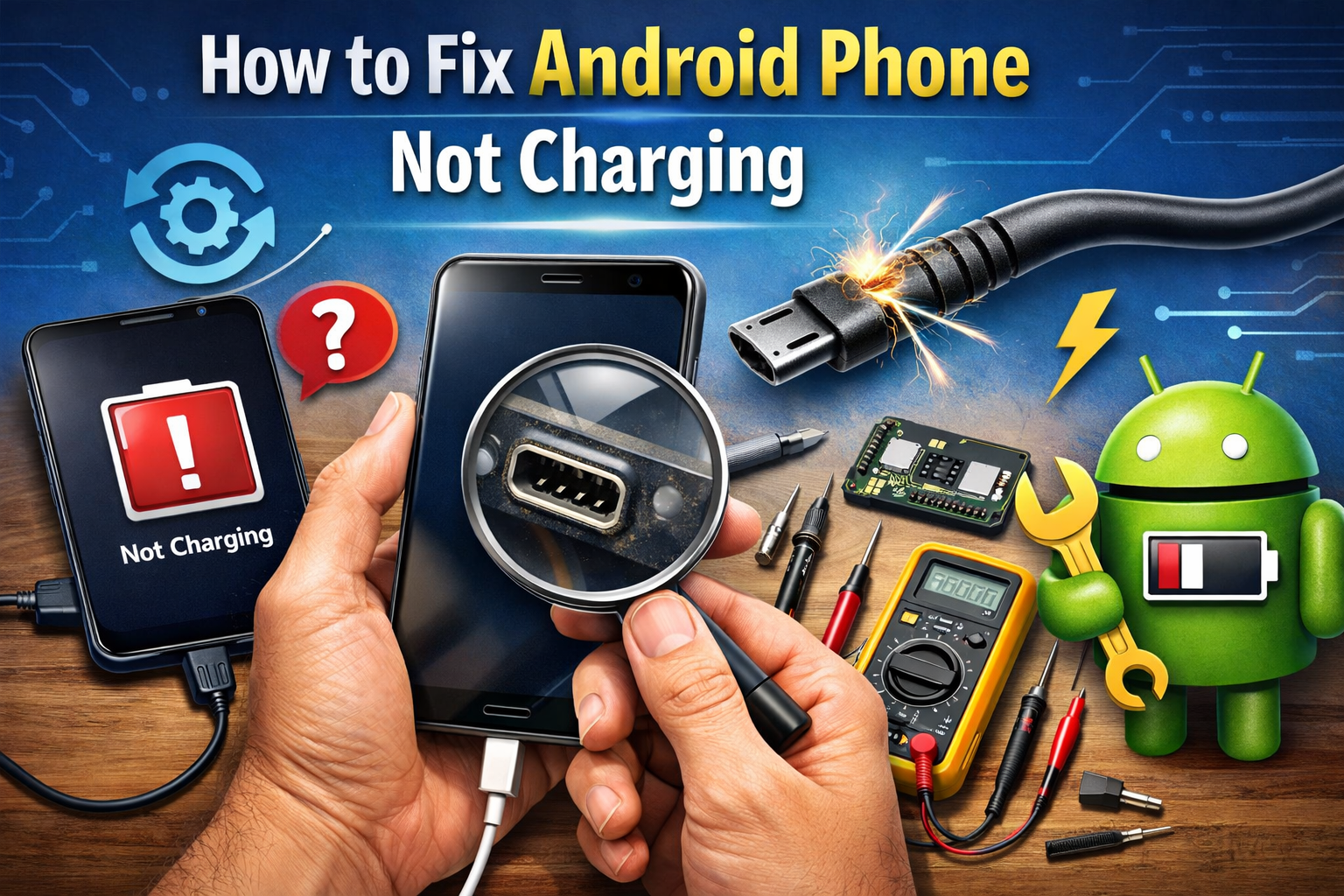
How to Fix Android Phone Not Charging (Cable & Software Fixes)
If your Android phone is not charging, it can be stressful—especially when you need your phone urgently. The good news is that most charging problems are easy to fix and do not require a technician. In many cases, the issue is related to the charging cable, adapter, charging port, or software settings, not the battery itself.
This beginner-friendly guide explains how to fix an Android phone not charging using simple, step-by-step solutions. You don’t need technical skills—just follow along carefully.
Why Is My Android Phone Not Charging?

Before fixing the problem, it helps to understand what might be causing it. Common reasons include:
- Damaged charging cable or adapter
- Dust or lint inside the charging port
- Faulty wall socket or power source
- Software glitches or system bugs
- Battery calibration issues
- Overheating protection stopping charging
Let’s go through each solution from easiest to advanced, so you can fix the problem quickly.
Step 1: Check the Charging Cable and Adapter (Most Common Fix)
Why this matters
Charging cables wear out over time, especially near the connector ends. Even if the cable looks fine, it may be broken inside.
What to do
- Unplug your current charging cable.
- Try another USB cable (preferably a new or original one).
- Use a different charging adapter.
- Plug into a wall socket, not a laptop or power bank.
Real-world example
Many users think their phone battery is dead, but after switching to a new cable, the phone starts charging immediately. Cheap or old cables are often the real problem.
Tip: Use original or certified fast-charging cables whenever possible.
Step 2: Inspect and Clean the Charging Port
Why this matters
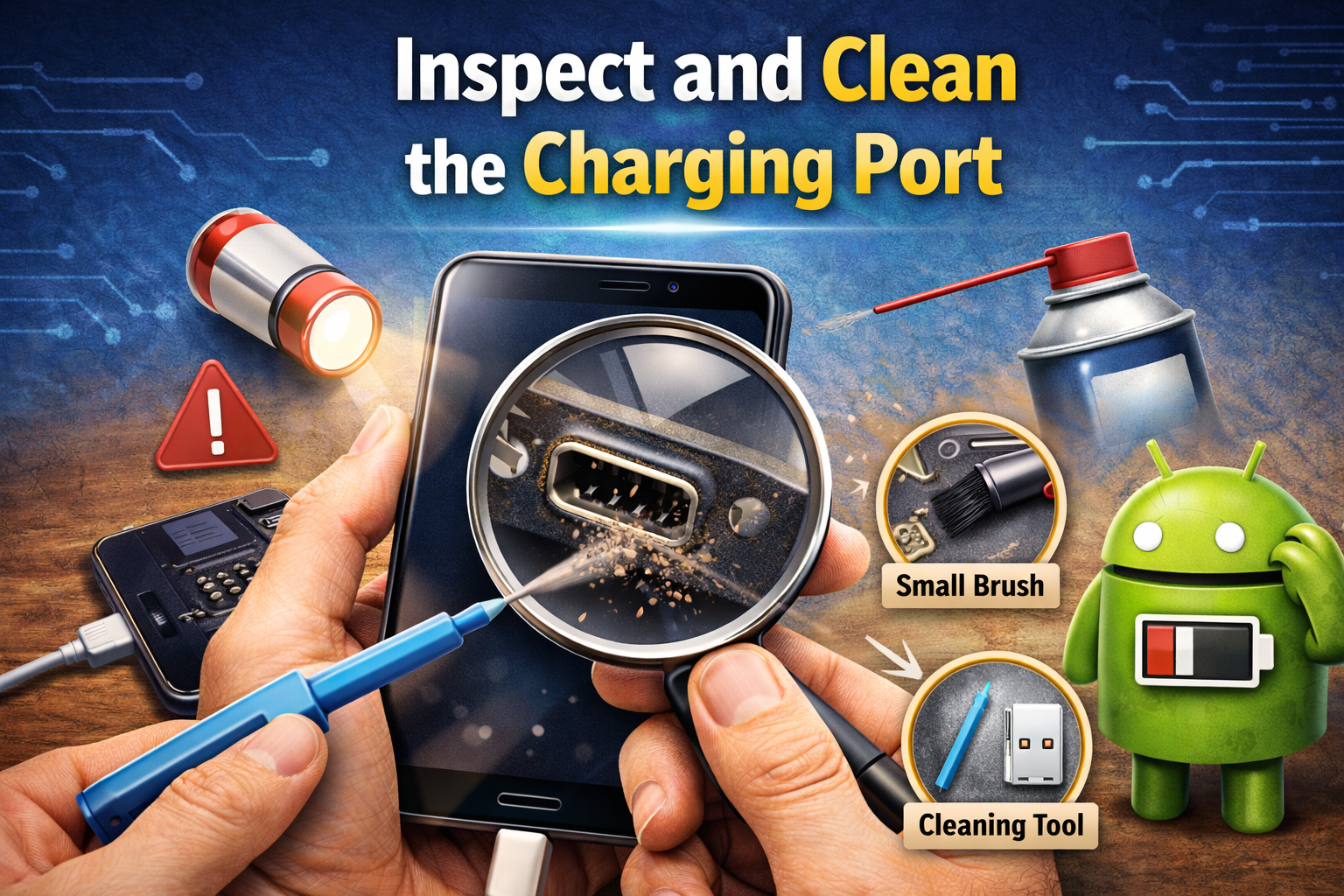
Dust, pocket lint, or dirt can block the connection between the cable and charging pins.
How to clean safely
- Turn off your Android phone.
- Use a wooden toothpick or plastic pin.
- Gently remove lint or dust from the port.
- Use a flashlight to check inside.
- Do not use metal objects or water.
Real-world example
Phones carried in jeans pockets often collect lint. Cleaning the port solves the charging issue instantly in many cases.
Be gentle—damaging the charging pins can cause bigger problems.
Step 3: Try a Different Power Source
What to test
- Change the wall socket
- Use a different extension board
- Try charging from a laptop USB port
Sometimes the problem is not your phone but the power source.
Step 4: Restart Your Android Phone
Why restarting helps
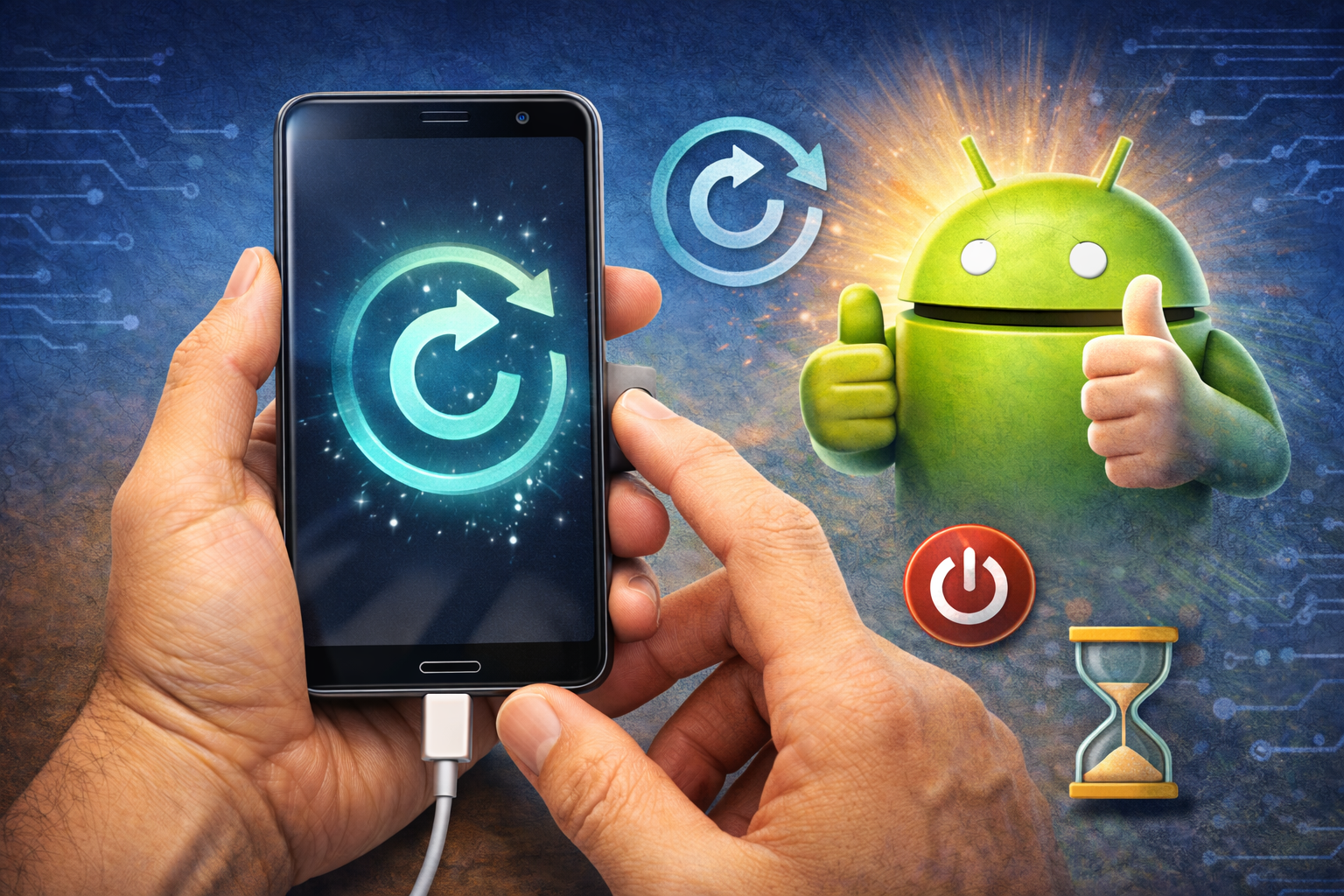
A simple restart can fix:
- Temporary system glitches
- Apps interfering with charging
- Background process errors
Steps
- Press and hold the Power button.
- Tap Restart.
- Plug in the charger after reboot.
This quick step often fixes software-related charging issues.
Step 5: Check for Software Issues (Very Important)
Update your Android system
Outdated software may cause charging bugs.
- Go to Settings
- Tap Software Update
- Download and install updates (if available)
Boot into Safe Mode
Safe Mode disables third-party apps.
How to enter Safe Mode (most devices):
- Hold the Power button.
- Tap and hold Power Off.
- Select Safe Mode.
If your phone charges in Safe Mode, a third-party app is the problem. Uninstall recently installed apps.
Step 6: Check Battery Temperature and Overheating
Why this matters
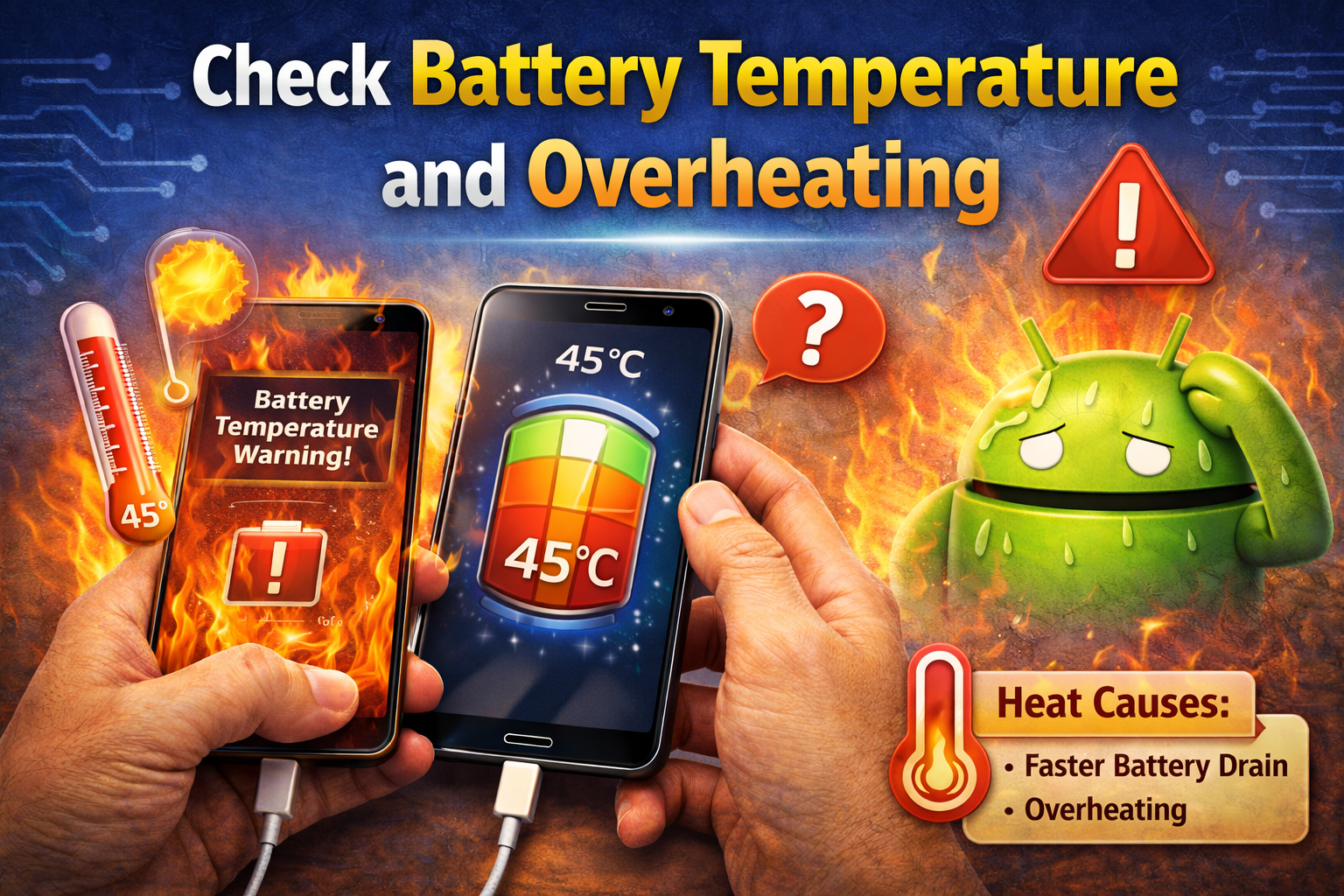
Android phones stop charging automatically if they get too hot.
What to do
- Remove the phone case
- Let the phone cool down for 10–15 minutes
- Avoid charging under sunlight
- Don’t use heavy apps while charging
Real example: Gaming while charging often causes overheating, which pauses charging until the phone cools.
Step 7: Calibrate the Battery (Software Fix)
Battery calibration helps when your phone shows:
- Charging stuck at 0% or 80%
- Charging but percentage not increasing
Battery calibration steps
- Use your phone until it shuts down (0%).
- Leave it off for 30 minutes.
- Charge to 100% without interruption.
- Leave it plugged in for another 30 minutes.
- Restart the phone.
This resets the battery reading system.
Step 8: Try Wireless Charging (If Supported)
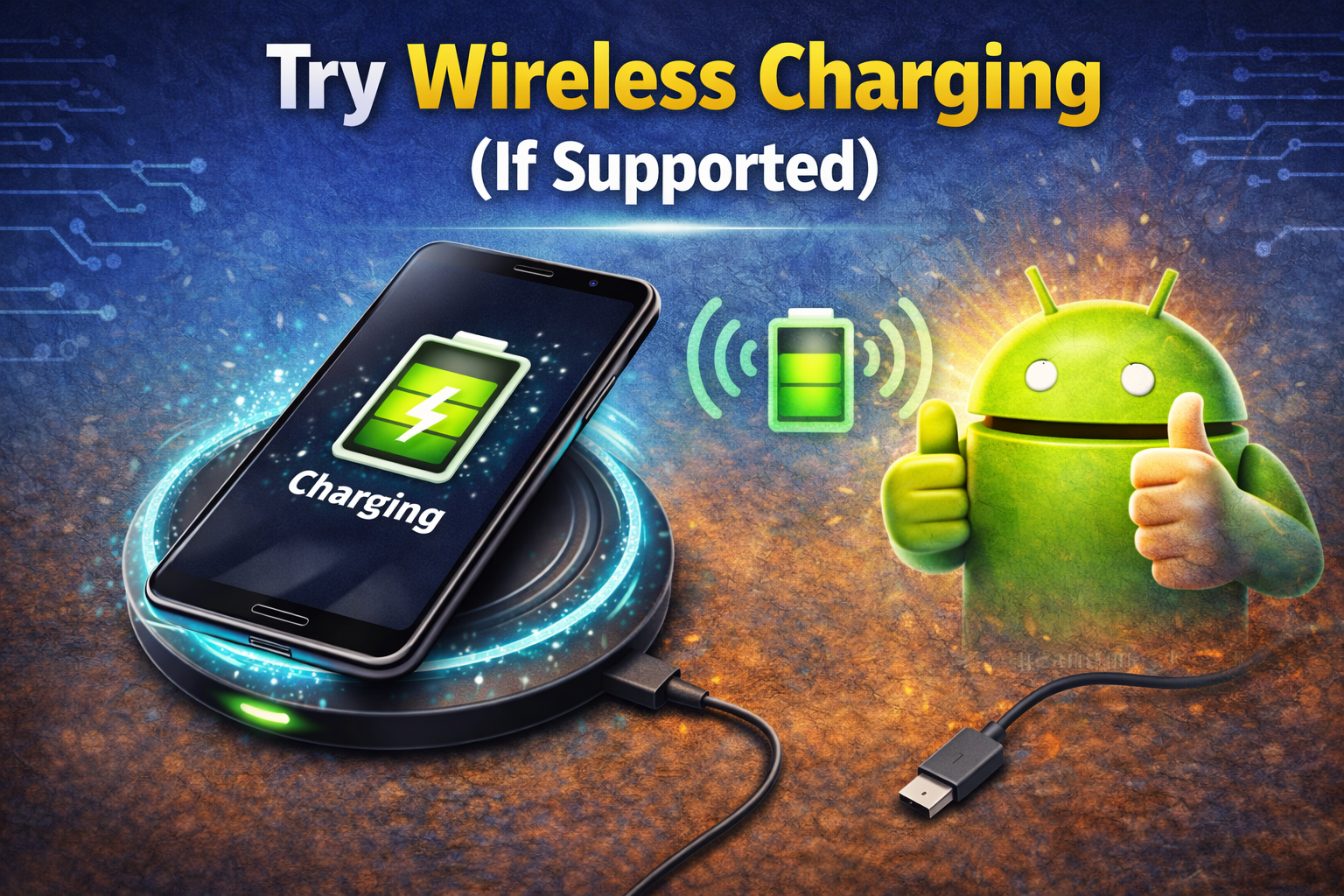
If your phone supports wireless charging:
- Place it on a wireless charger
- If it charges wirelessly but not via cable, the charging port is likely damaged
This helps identify hardware problems.
Step 9: Check for Physical Damage
Look for:
- Bent charging port
- Loose cable connection
- Phone only charges at a certain angle
These signs usually mean hardware damage, and a repair may be needed.
Step 10: Factory Reset (Last Resort – Backup First)

If nothing works, a software conflict may be the cause.
Before resetting
- Backup photos, contacts, and files
Factory reset steps
- Go to Settings
- Tap System > Reset
- Choose Factory Data Reset
This deletes all data and should only be used as a last option.
When Should You Replace the Battery or Visit a Repair Shop?
Consider professional help if:
- Phone doesn’t charge with any cable
- Charging port is loose or broken
- Battery drains extremely fast
- Phone is more than 2–3 years old
In these cases, a battery replacement or port repair may be required.
Frequently Asked Questions (FAQ)
1. Why is my Android phone charging very slowly?
Slow charging is usually caused by a low-quality cable, weak adapter, background apps, or overheating.
2. Can a software update fix charging problems?
Yes. Many charging issues are caused by system bugs that updates can fix.
3. Is it safe to clean the charging port myself?
Yes, if you use a wooden or plastic tool and are gentle. Never use metal objects.
4. My phone shows “charging” but battery percentage doesn’t increase. Why?
This is often a battery calibration issue or a background app draining power.
5. Should I use my phone while charging?
Light use is okay, but gaming or video streaming can slow or stop charging due to heat.
Conclusion
If your Android phone is not charging, don’t panic. In most cases, the problem is easy to fix with simple steps like changing the cable, cleaning the charging port, or fixing software issues. Always start with basic checks before assuming hardware damage.
By following this guide step by step, you can save time, money, and frustration—and get your Android phone charging again quickly.