
Android Camera Not Working? Quick Fixes That Actually Work
If your Android camera not working problem is stopping you from taking photos, scanning QR codes, or recording videos, you’re not alone. This is one of the most common Android issues faced by beginners and everyday users. The good news? In most cases, you can fix it yourself in just a few minutes—no technician needed.
In this guide, you’ll learn simple, proven fixes that actually work, explained step by step. Whether your camera app crashes, shows a black screen, or says “Camera failed,” this article will help you solve it.
Common Signs Your Android Camera Is Not Working
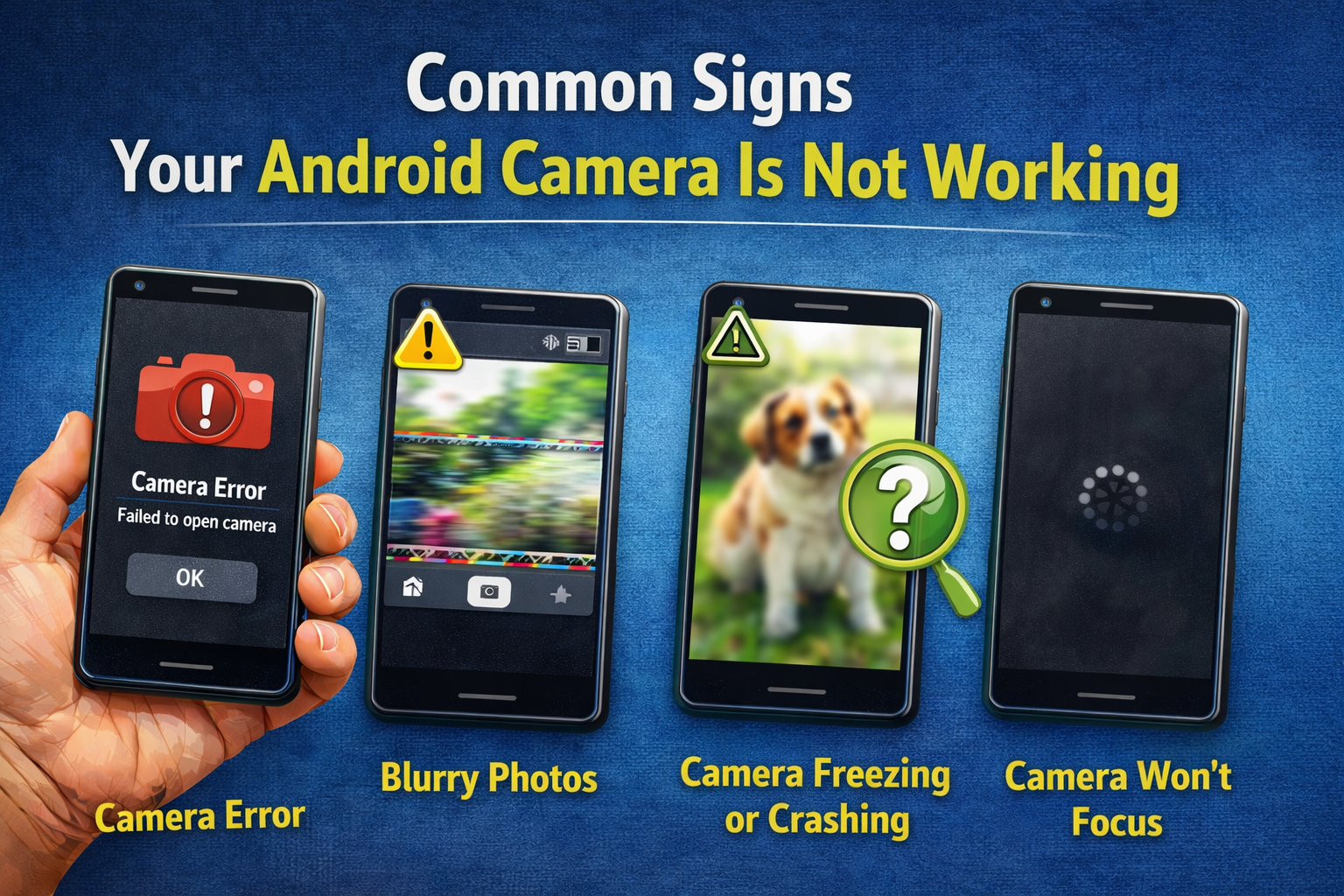
Before fixing the issue, let’s identify what’s happening. Your Android camera may not be working if you notice:
- The camera app won’t open
- A black or frozen screen appears
- “Camera failed” or “Can’t connect to camera” error
- Camera works in some apps but not others
- Photos appear blurry or distorted
- Camera crashes immediately after opening
Real-world example:
Many users report that their camera stops working after a system update or installing a new app.
Why Is My Android Camera Not Working?
Understanding the cause helps you choose the right fix. Common reasons include:
- App cache corruption
- Permission issues
- Conflicting third-party apps
- Outdated system software
- Low storage space
- Hardware damage (less common)
Let’s start with the easiest fixes first.
Quick Fixes for Android Camera Not Working (Start Here)
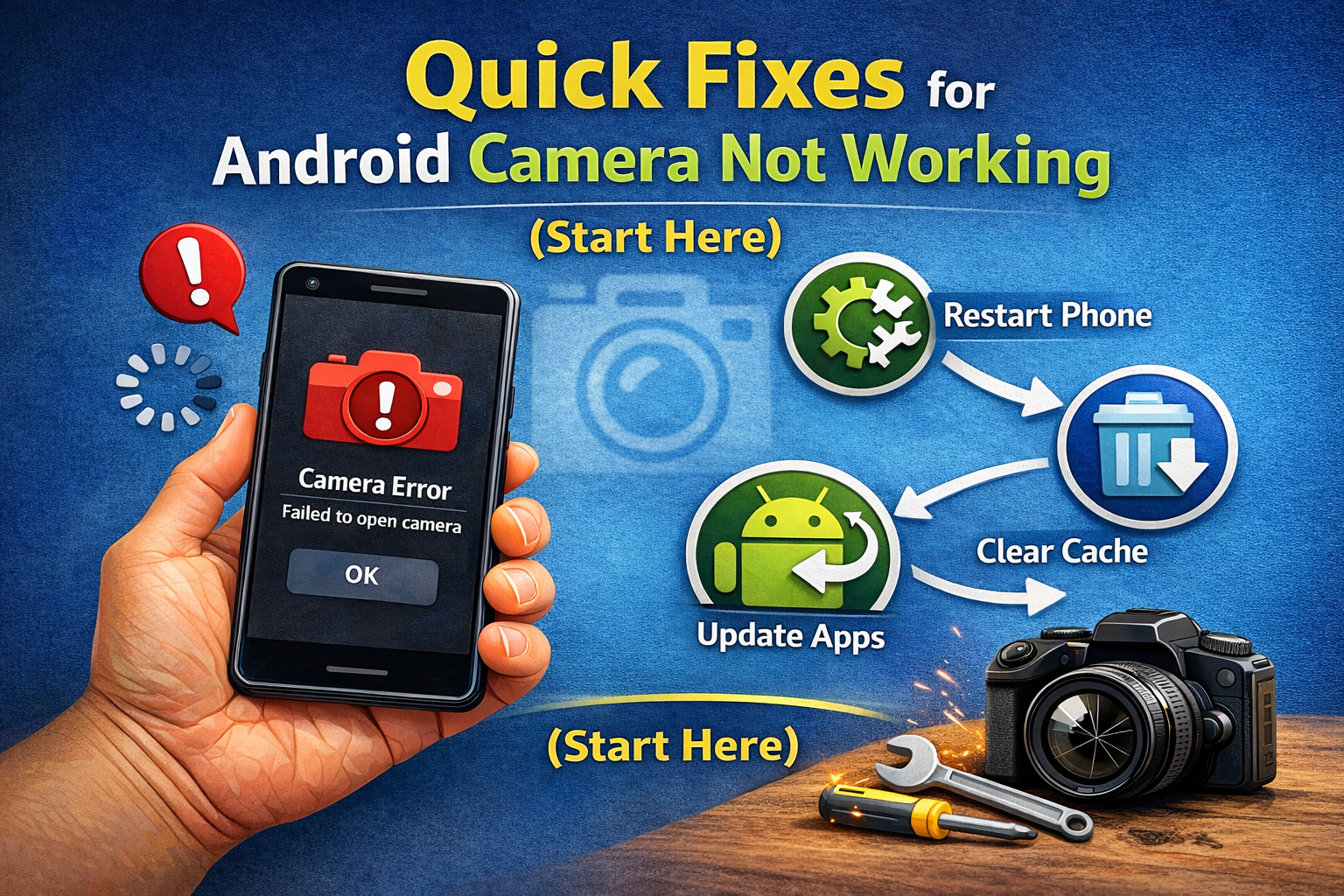
Restart Your Phone (Simple but Powerful)
Restarting clears temporary bugs that can break the camera.
Steps:
- Press and hold the Power button
- Tap Restart
- Open the camera app again
This fix alone solves many camera problems.
Check Camera Permissions
If the camera doesn’t have permission, it won’t work.
Steps:
- Go to Settings
- Tap Apps or Apps & notifications
- Select Camera
- Tap Permissions
- Enable Camera, Storage, and Microphone
Example:
After installing a privacy app, permissions may be blocked automatically.
Fix Android Camera App Issues
Clear Camera App Cache and Data
Corrupted cache files are a top reason the Android camera stops working.
Steps:
- Open Settings
- Tap Apps
- Select Camera
- Tap Storage
- Choose Clear Cache
- If needed, tap Clear Data
Clearing data resets camera settings but won’t delete your photos.
Force Stop the Camera App
This refreshes the app completely.
Steps:
- Settings → Apps → Camera
- Tap Force Stop
- Reopen the camera
Fix Conflicts Causing Android Camera Not Working
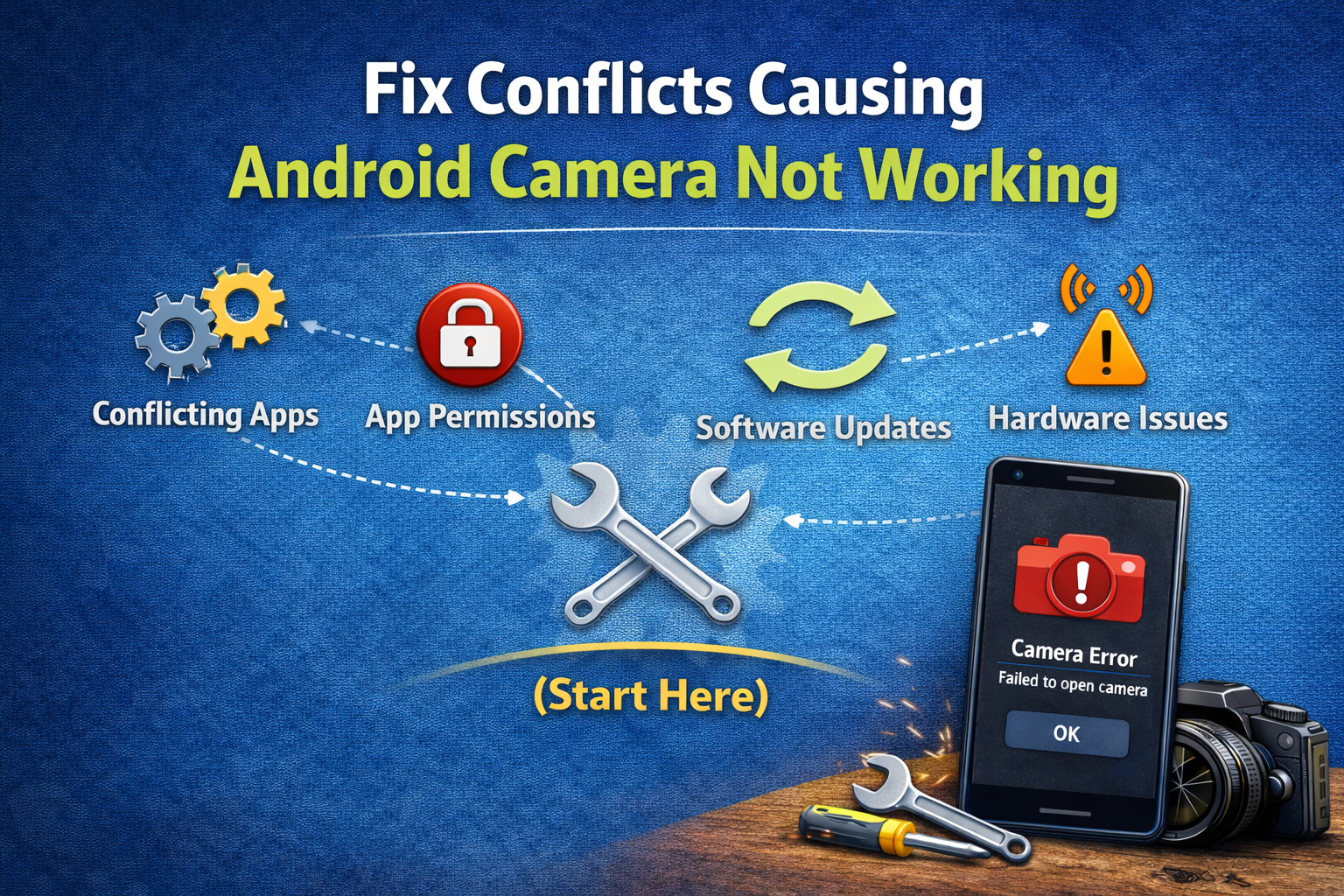
Close Other Apps Using the Camera
Only one app can use the camera at a time.
Check and close:
- Video call apps
- Flashlight apps
- Social media apps (Instagram, Snapchat)
Example:
If a video call app crashes, it may lock the camera in the background.
Restart in Safe Mode
Safe Mode disables third-party apps.
Steps (may vary by phone):
- Press and hold Power
- Tap and hold Power Off
- Select Safe Mode
- Open the camera
If the camera works, a third-party app is the problem.
Remove recently installed apps one by one.
System-Level Fixes That Actually Work
Update Your Android Software
System bugs can break camera functionality.
Steps:
- Go to Settings
- Tap Software Update
- Install any available updates
Real-world example:
Many users fix camera issues after installing security patches.
Check Available Storage Space
Low storage can stop the camera from saving photos.
Steps:
- Settings → Storage
- Ensure at least 1–2 GB free
- Delete unused apps or videos
Advanced Fixes (Try Only If Needed)
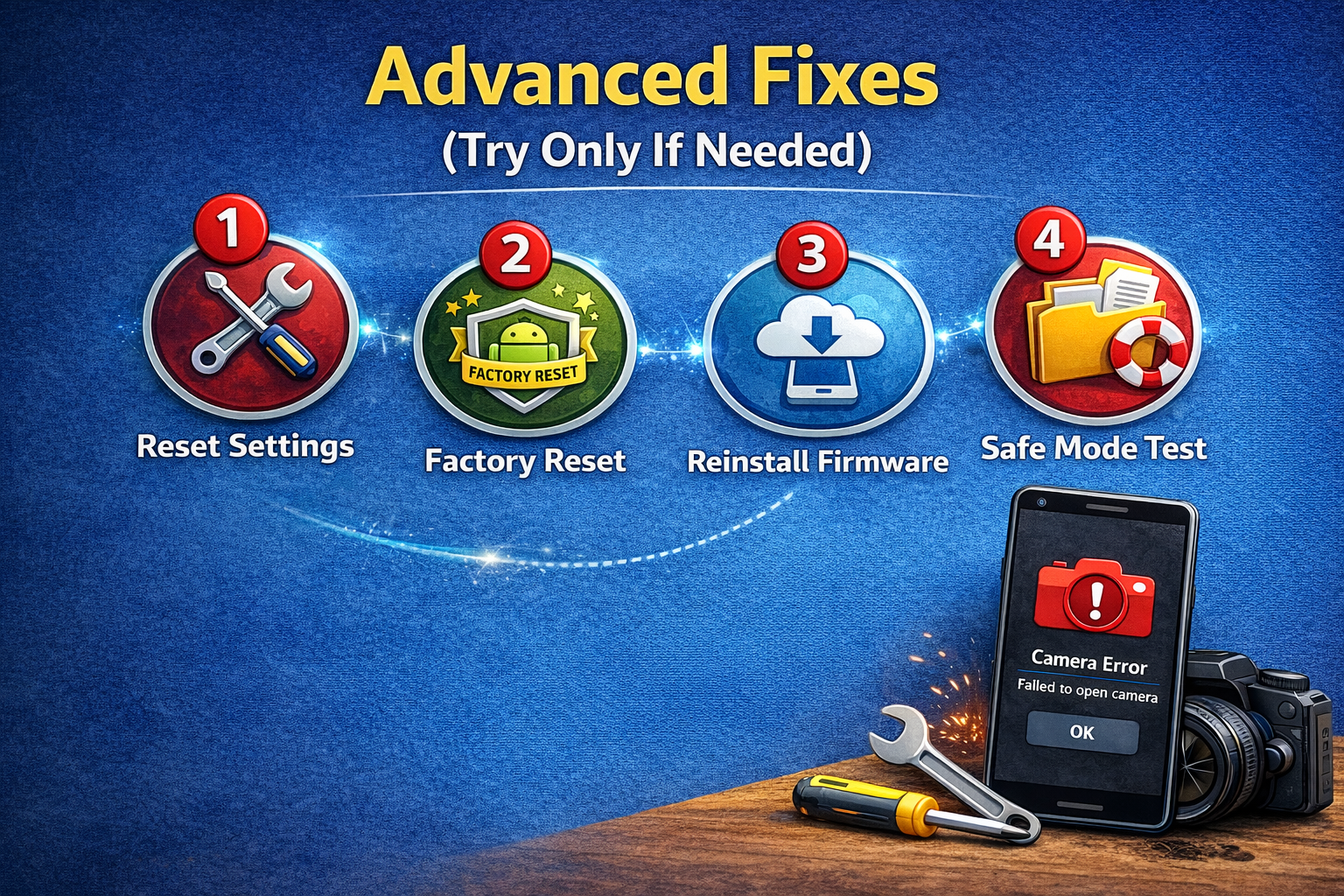
Reset App Preferences
This restores default app behavior without deleting data.
Steps:
- Settings → Apps
- Tap Menu (⋮)
- Select Reset app preferences
Factory Reset (Last Resort)
Use this only if nothing else works.
Before resetting:
- Back up photos, contacts, and files
Steps:
- Settings → System
- Tap Reset
- Choose Factory Data Reset
This erases everything on your phone.
When Is It a Hardware Problem?
Your Android camera may be physically damaged if:
- Camera never opens, even after reset
- Lens is cracked or foggy
- Phone was dropped or exposed to water
In this case, visit an authorized repair center.
Tips to Prevent Android Camera Problems
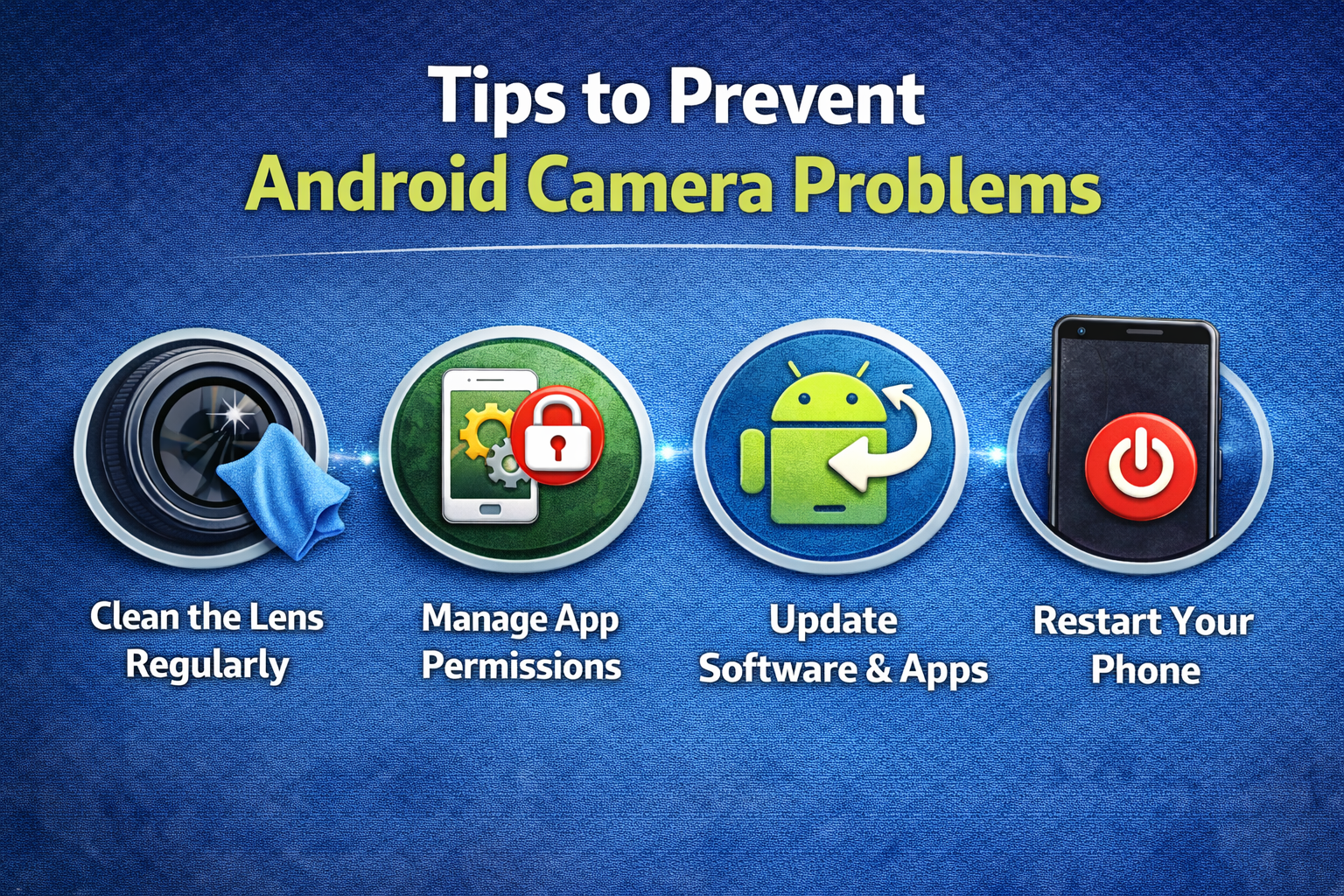
- Keep your phone updated
- Avoid installing unknown camera apps
- Clean the camera lens regularly
- Don’t overload your storage
- Restart your phone once a week
Frequently Asked Questions (FAQ)
1. Why does my Android camera show a black screen?
This usually happens due to app conflicts, permission issues, or a corrupted cache.
2. Why does my camera work in WhatsApp but not the Camera app?
The Camera app may be corrupted. Clearing cache or resetting app preferences usually fixes it.
3. Can a system update break my Android camera?
Yes. Bugs can appear after updates, but future patches often fix them.
4. Is “Camera failed” a hardware issue?
Not always. It’s often a software bug that can be fixed using the steps above.
5. Will factory reset fix Android camera not working?
In most software-related cases, yes—but only use it as a last option.
Conclusion
If your Android camera not working issue is driving you crazy, don’t panic. Most camera problems are software-related and can be fixed in minutes using simple steps like restarting your phone, clearing cache, or checking permissions.
Try the quick fixes first, move to advanced solutions only if needed, and you’ll likely have your camera working again—ready to capture life’s moments without stress.