How to Fix Software Save Error and Prevent Data Loss
Software save errors are one of the most frustrating problems for computer users. You spend time working on a document, design, or project, click Save, and suddenly see an error message. In some cases, the file does not save at all, putting your data at risk.
This guide explains how to fix software save error and prevent data loss using simple, beginner-friendly steps. Whether you are using Windows, macOS, or common software like Word, Excel, Photoshop, or other apps, the solutions below will help you save your work safely and avoid future problems.
What Is a Software Save Error?
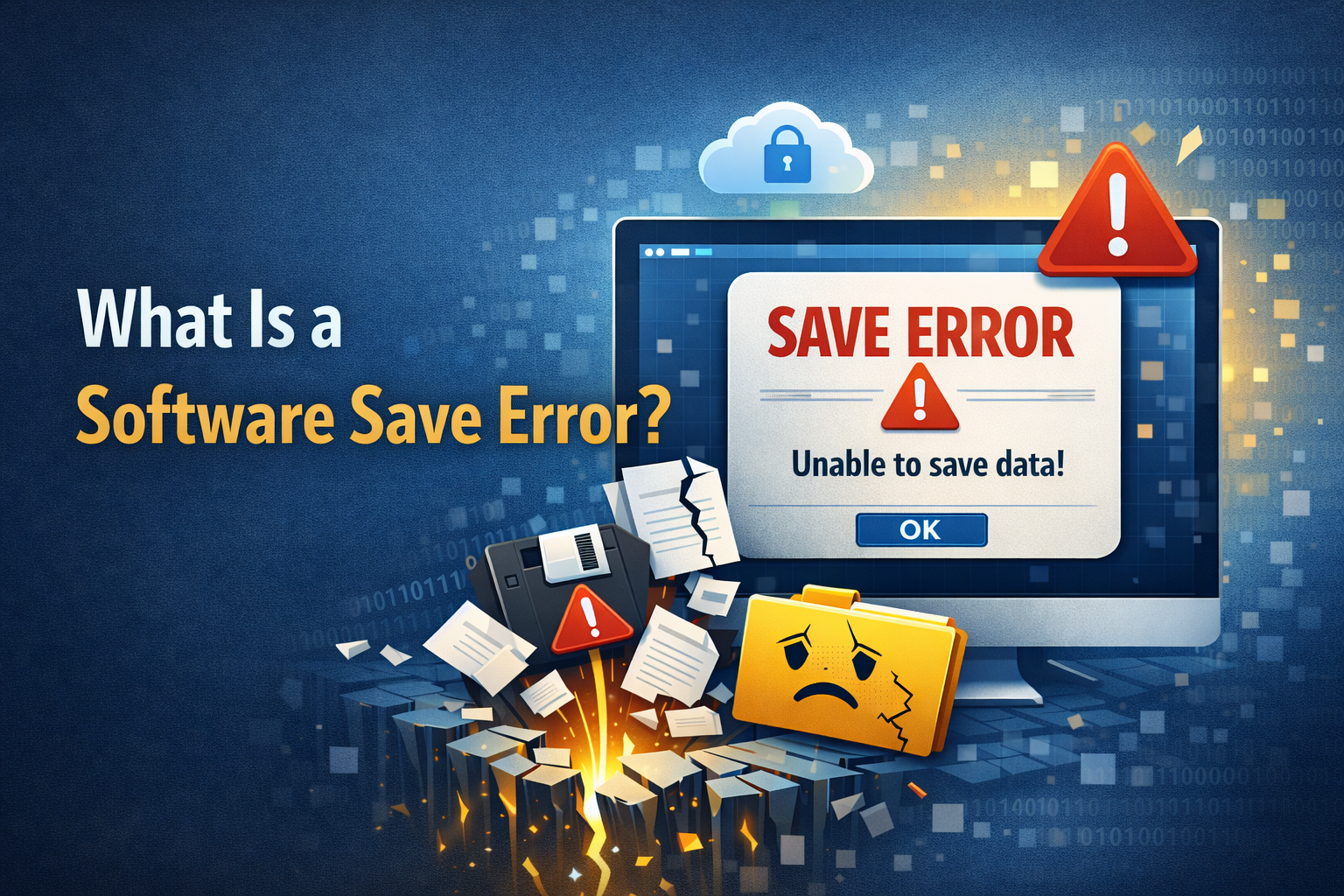
A software save error happens when an application cannot store your file properly. Instead of saving, the software may show messages like:
- “File could not be saved”
- “Access denied”
- “Save failed due to an unknown error”
- “Not enough disk space”
These errors can appear suddenly and may cause partial or complete data loss if not handled correctly.
Common Causes of Software Save Errors
Before fixing the issue, it helps to understand why it happens.
1. Insufficient Disk Space
If your hard drive or SSD is almost full, software may fail to save files.
2. Permission or Access Issues
Saving to protected folders (like system directories) can cause permission errors.
3. Corrupted Software or Files
Damaged application files or corrupted documents often trigger save errors.
4. Antivirus or Security Software Conflicts
Some security tools block file-writing actions to protect your system.
5. Sudden Crashes or Power Interruptions
Unexpected shutdowns can break the save process.
How to Fix Software Save Error Step by Step
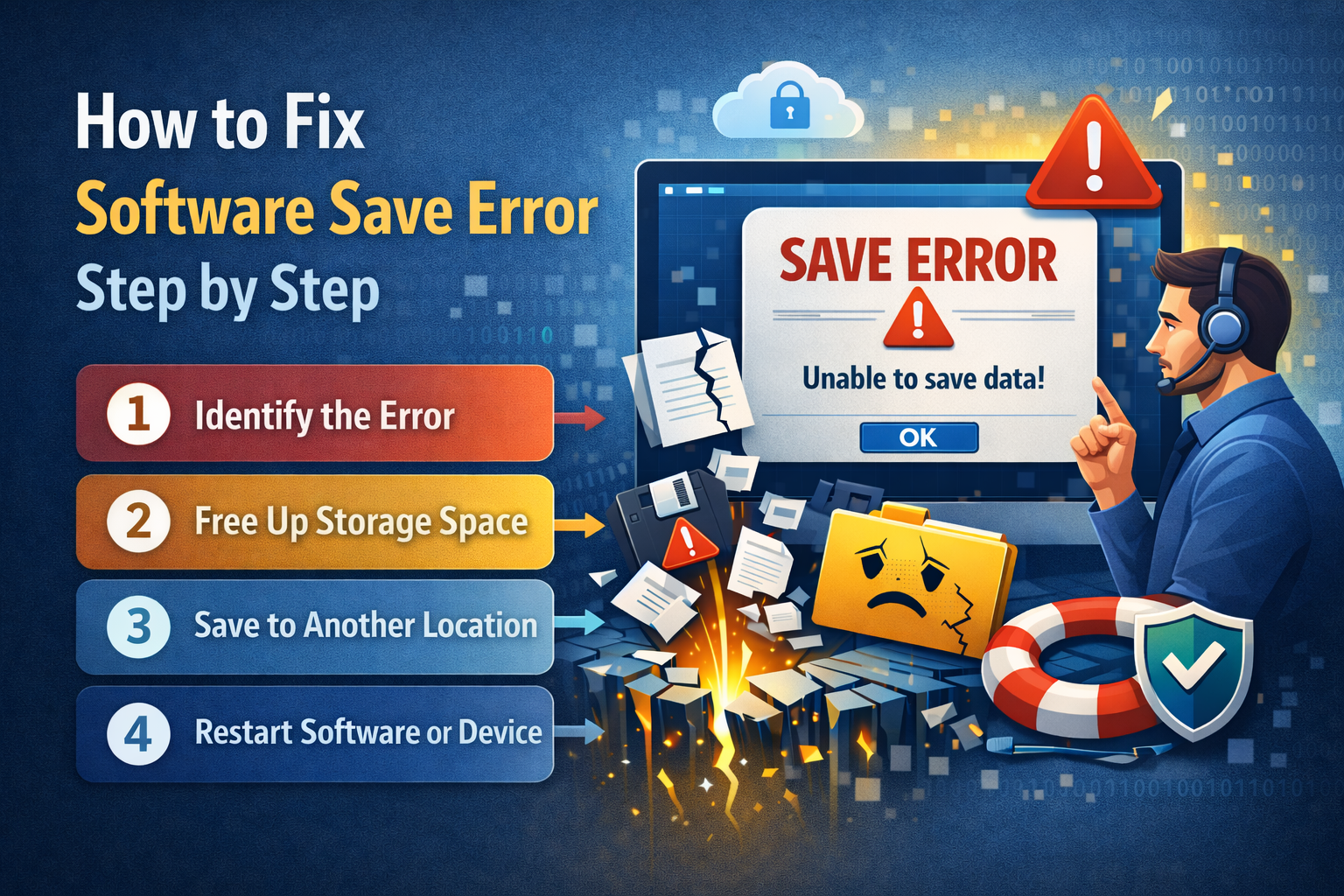
1. Save the File With a New Name and Location
This is the fastest and safest first step.
Steps:
- Click File → Save As
- Choose a different folder (Desktop or Documents)
- Rename the file
- Click Save
Real-world example:
If Microsoft Word fails to save a report to a network drive, saving it locally to your Desktop often works immediately.
2. Check Available Disk Space
Low storage is a very common cause.
Steps (Windows/macOS):
- Open This PC / Finder
- Check free space on your main drive
- Delete unnecessary files or empty the Recycle Bin/Trash
Tip: Keep at least 10–15% free space on your drive for smooth operation.
3. Run the Software as Administrator (Windows)
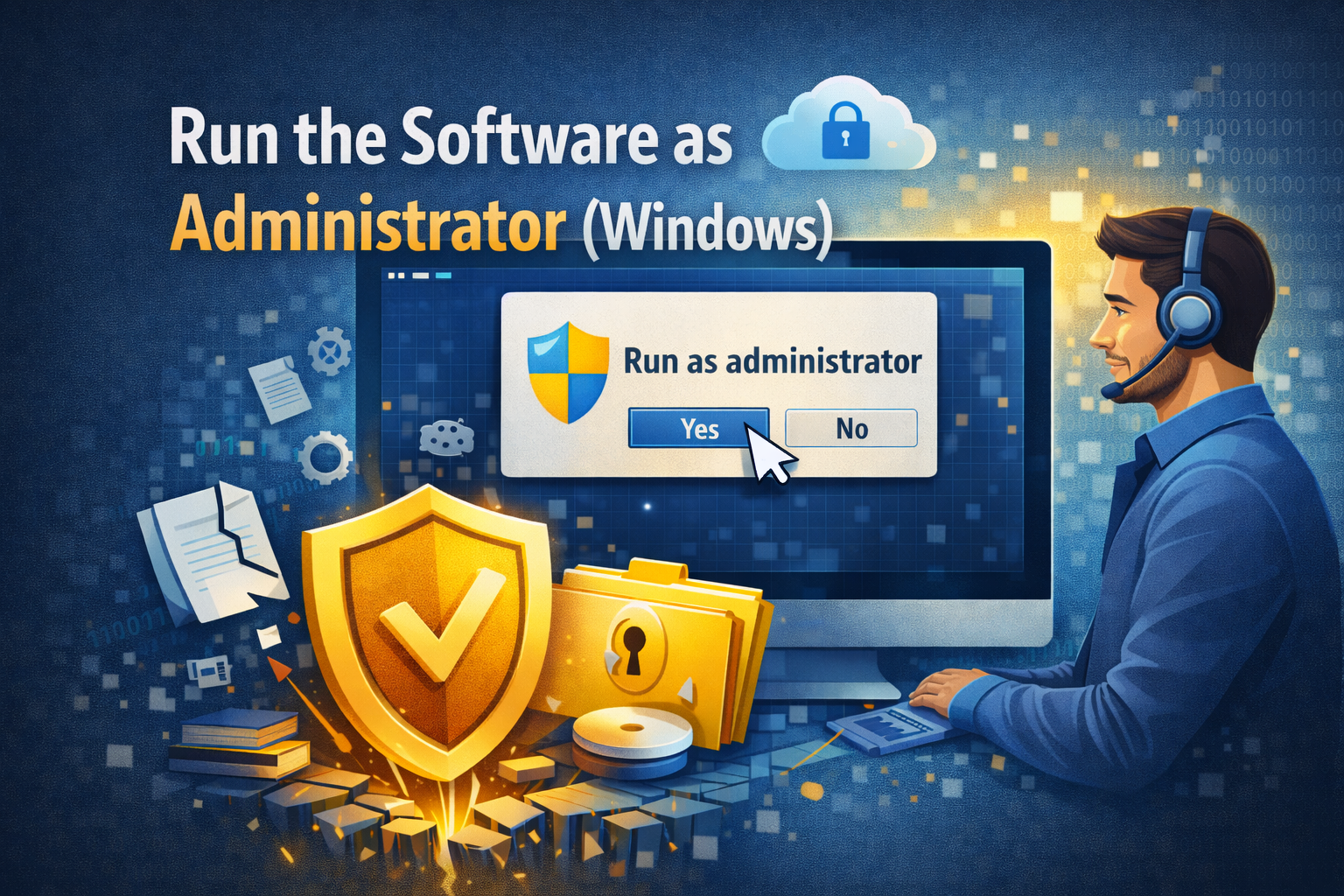
Some applications need higher permissions.
Steps:
- Close the software
- Right-click the app icon
- Select Run as administrator
- Try saving again
This often fixes save errors related to restricted folders.
4. Disable Antivirus Temporarily (Test Only)
Security software may block saving actions.
Steps:
- Pause real-time protection briefly
- Try saving the file
- Re-enable antivirus immediately
Only disable protection temporarily and from trusted software.
5. Check File Permissions
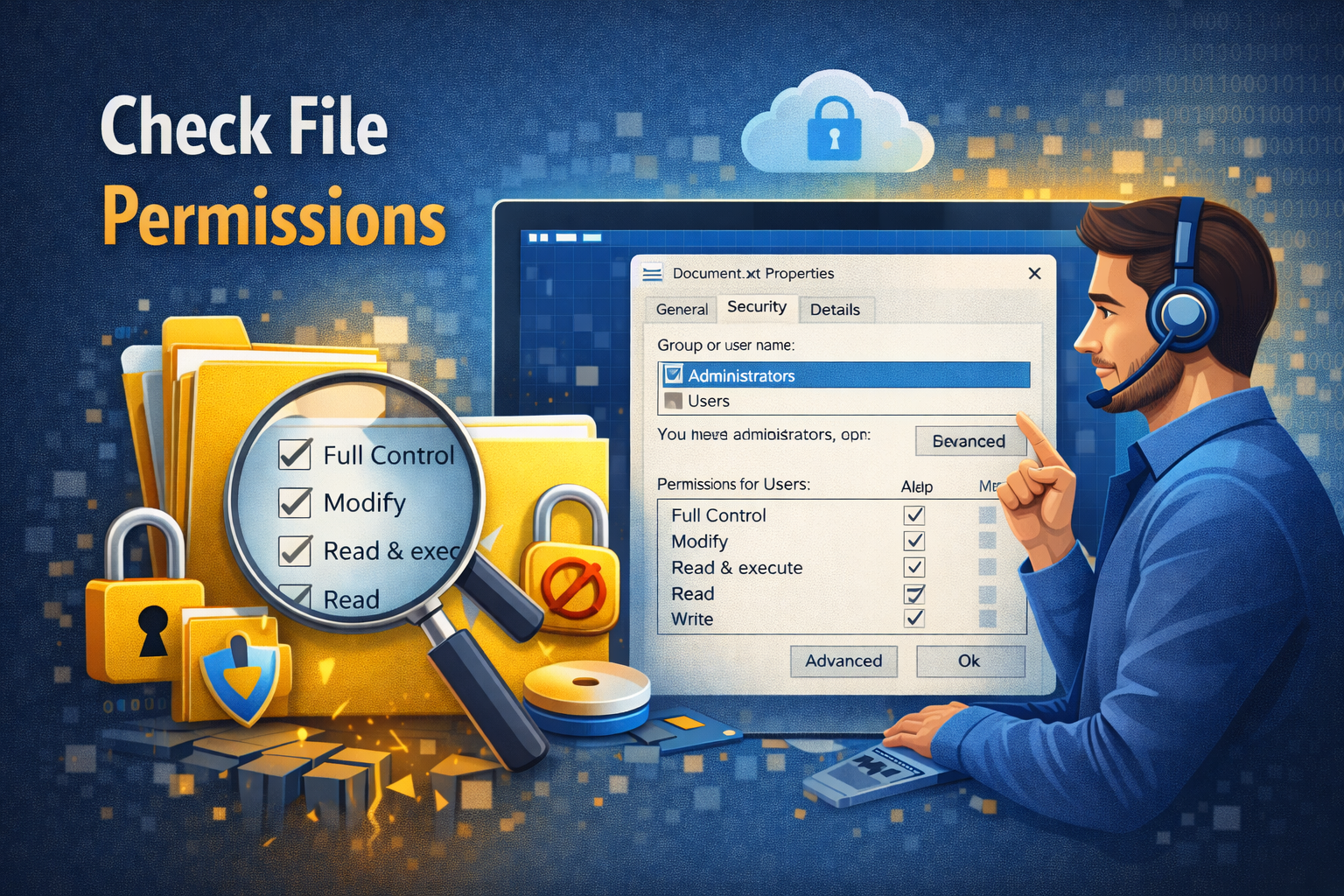
If you don’t have permission, the save will fail.
Steps (Windows):
- Right-click the folder
- Select Properties → Security
- Ensure your user account has Write permission
Steps (macOS):
- Right-click folder → Get Info
- Check Sharing & Permissions
- Set your account to Read & Write
6. Update the Software
Outdated software often contains bugs.
Steps:
- Open the software
- Check Help → Updates
- Install the latest version
- Restart your computer
This is especially important for creative software and office apps.
How to Fix Software Save Error Caused by File Corruption
7. Recover and Rebuild the File
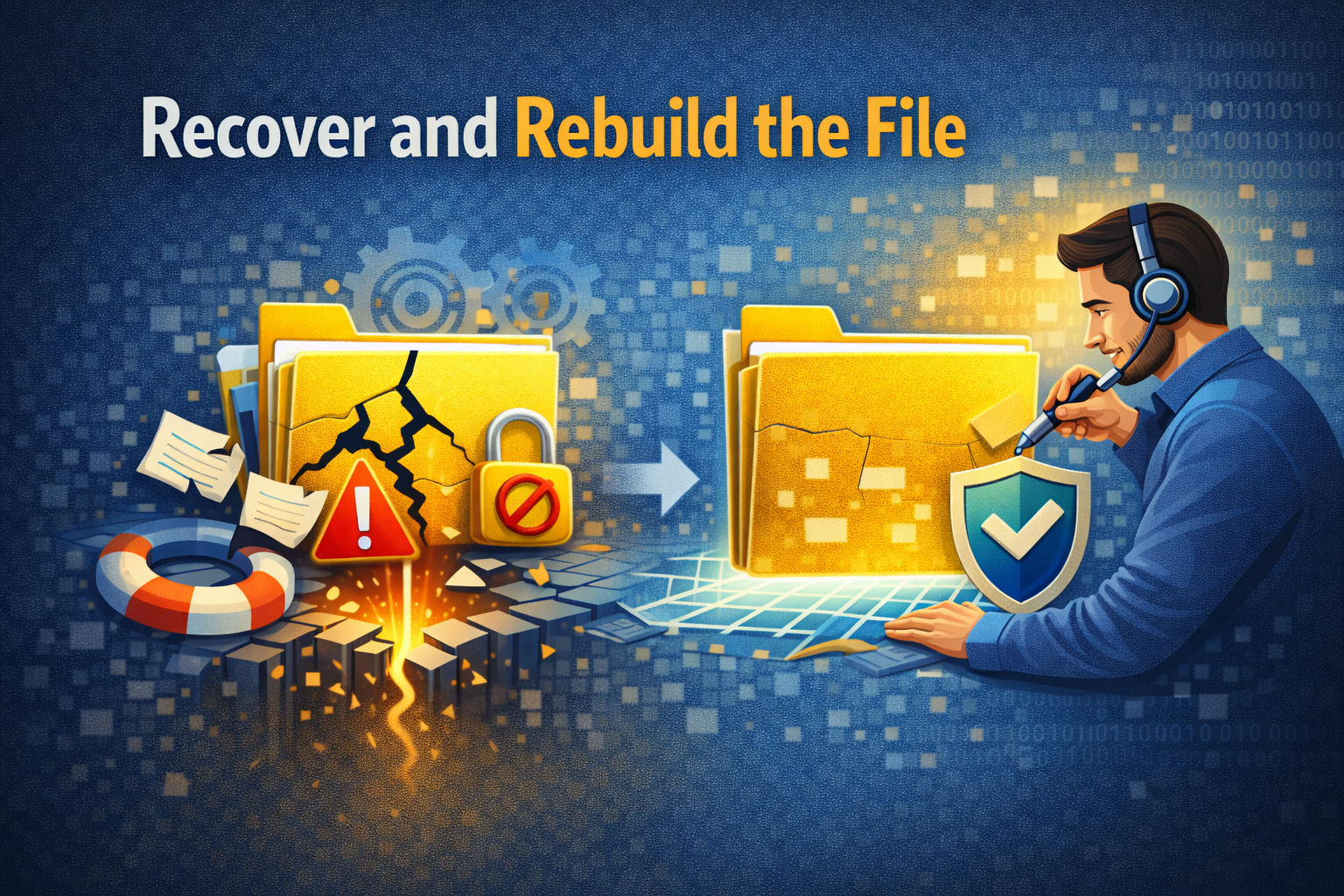
If the file itself is damaged:
Steps:
- Open a blank document
- Copy and paste content from the corrupted file
- Save as a new file
Example:
An Excel file won’t save, but copying data into a new workbook fixes the issue.
8. Use AutoSave or Recovery Files
Many programs save temporary backups automatically.
Steps:
- Open the software
- Look for Recovered Files or AutoSave
- Restore the most recent version
Apps like Word, Excel, and many editors have this feature built-in.
How to Prevent Data Loss From Software Save Errors
9. Enable AutoSave and Auto Backup
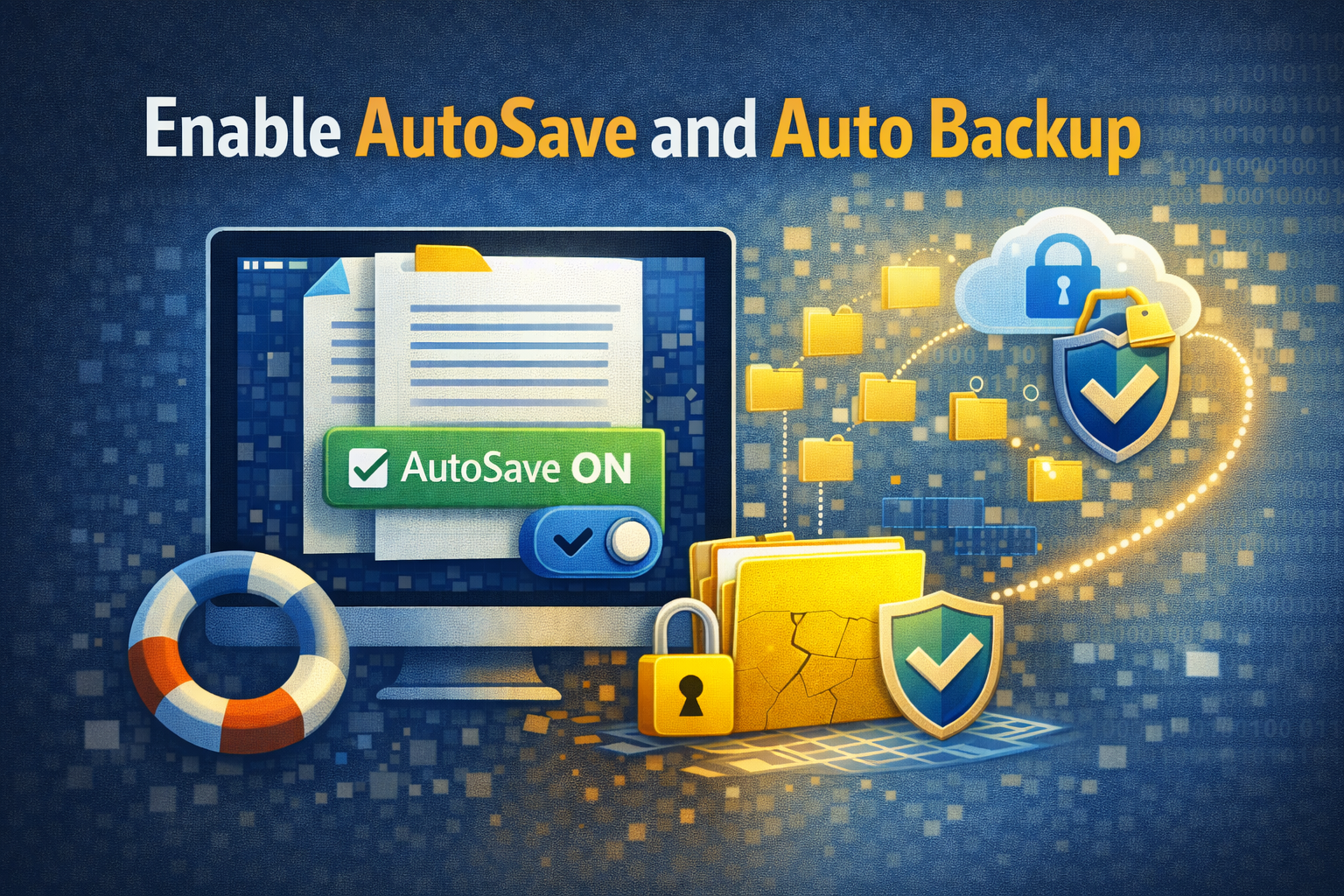
AutoSave is your best protection.
Recommended settings:
- AutoSave every 1–5 minutes
- Backup files to cloud storage or external drives
10. Save Files Frequently Using Shortcuts
Get into the habit of saving often.
- Windows: Ctrl + S
- macOS: Cmd + S
Saving every few minutes greatly reduces data loss risk.
11. Avoid Saving Directly to External or Network Drives
USB drives and network folders can disconnect suddenly.
Best practice:
- Save locally first
- Copy the file to external storage later
12. Keep Your Operating System Updated
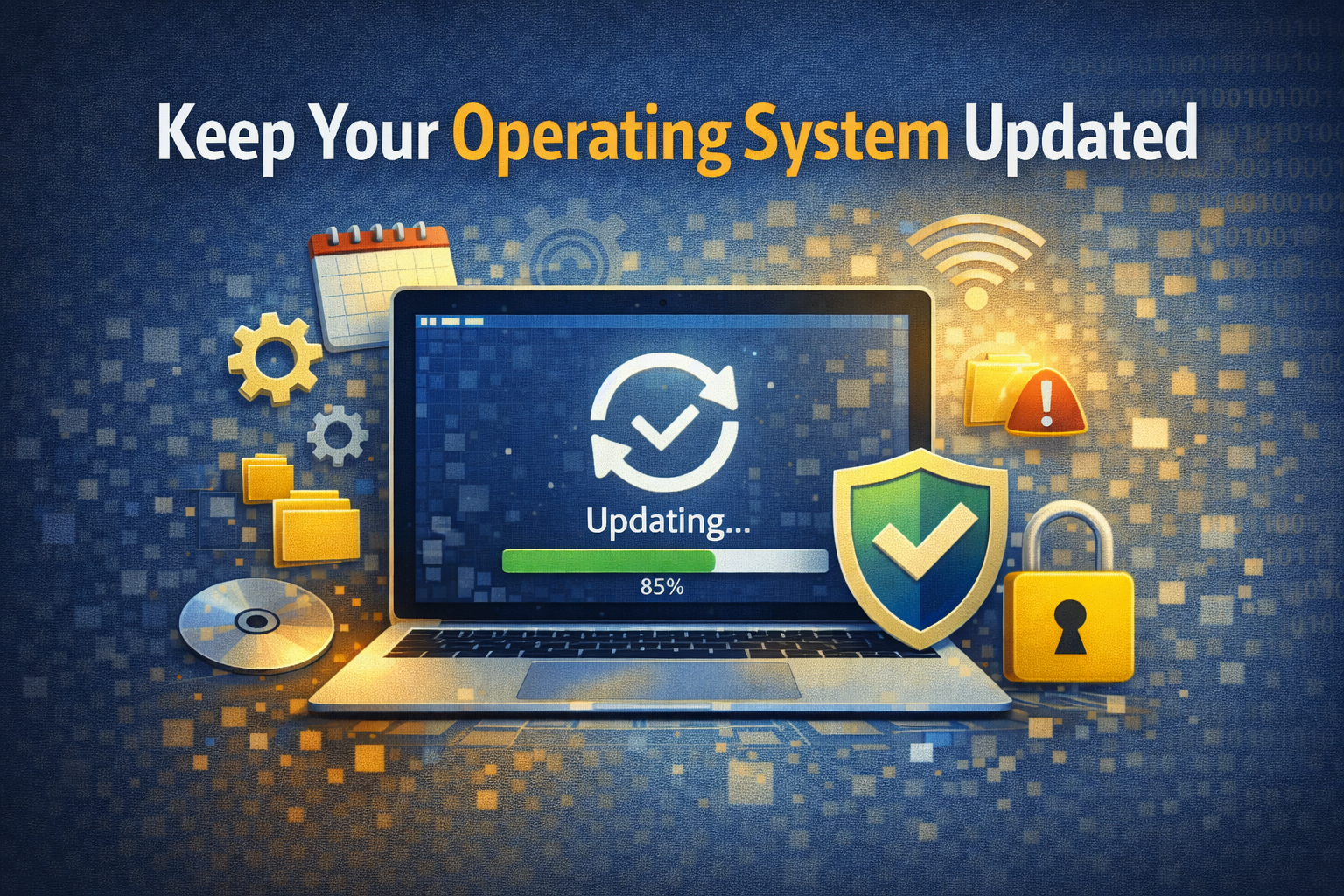
System updates fix file system bugs and compatibility issues.
Steps:
- Windows: Settings → Update
- macOS: System Settings → Software Update
Best Practices to Avoid Software Save Errors in the Future
- Keep enough free disk space
- Use trusted antivirus software
- Avoid forced shutdowns
- Close unused apps to reduce system load
- Restart your computer regularly
Small habits can prevent big problems.
Frequently Asked Questions (FAQ)
1. Why does my software say “Save failed” even though I have space?
This usually happens due to permission issues, antivirus interference, or a corrupted file.
2. Can software save errors cause permanent data loss?
Yes, if no backups or recovery files exist. That’s why AutoSave and frequent manual saving are essential.
3. Is cloud saving safer than local saving?
Cloud saving is safer if your internet connection is stable. Always keep a local copy as well.
4. Does reinstalling the software fix save errors?
In many cases, yes—especially if the software installation is corrupted.
5. What is the fastest way to fix a software save error?
Use Save As, choose a new name and location, and save locally.
Conclusion
Software save errors can be stressful, but they are usually easy to fix if you act quickly. By understanding the causes and following the steps in this guide, you can fix software save error and prevent data loss effectively.
Enable AutoSave, keep your system updated, and save your work frequently. These simple habits will protect your data and give you peace of mind while working on any software.