
How to Fix Internet Not Working on Any Device
When your internet suddenly stops working, it can feel frustrating—especially when the internet is not working on any device in your home. You might notice that your phone, laptop, smart TV, and tablet all lose connection at the same time. This usually means the problem is not with one device but with your network, router, or internet service.
The good news? Most internet problems are easy to fix at home, even if you are not tech-savvy. In this guide, you’ll learn how to fix internet not working on any device using simple, step-by-step solutions. These methods work for Wi-Fi and wired connections and apply to phones, computers, and smart devices.
Understanding Why the Internet Is Not Working on Any Device
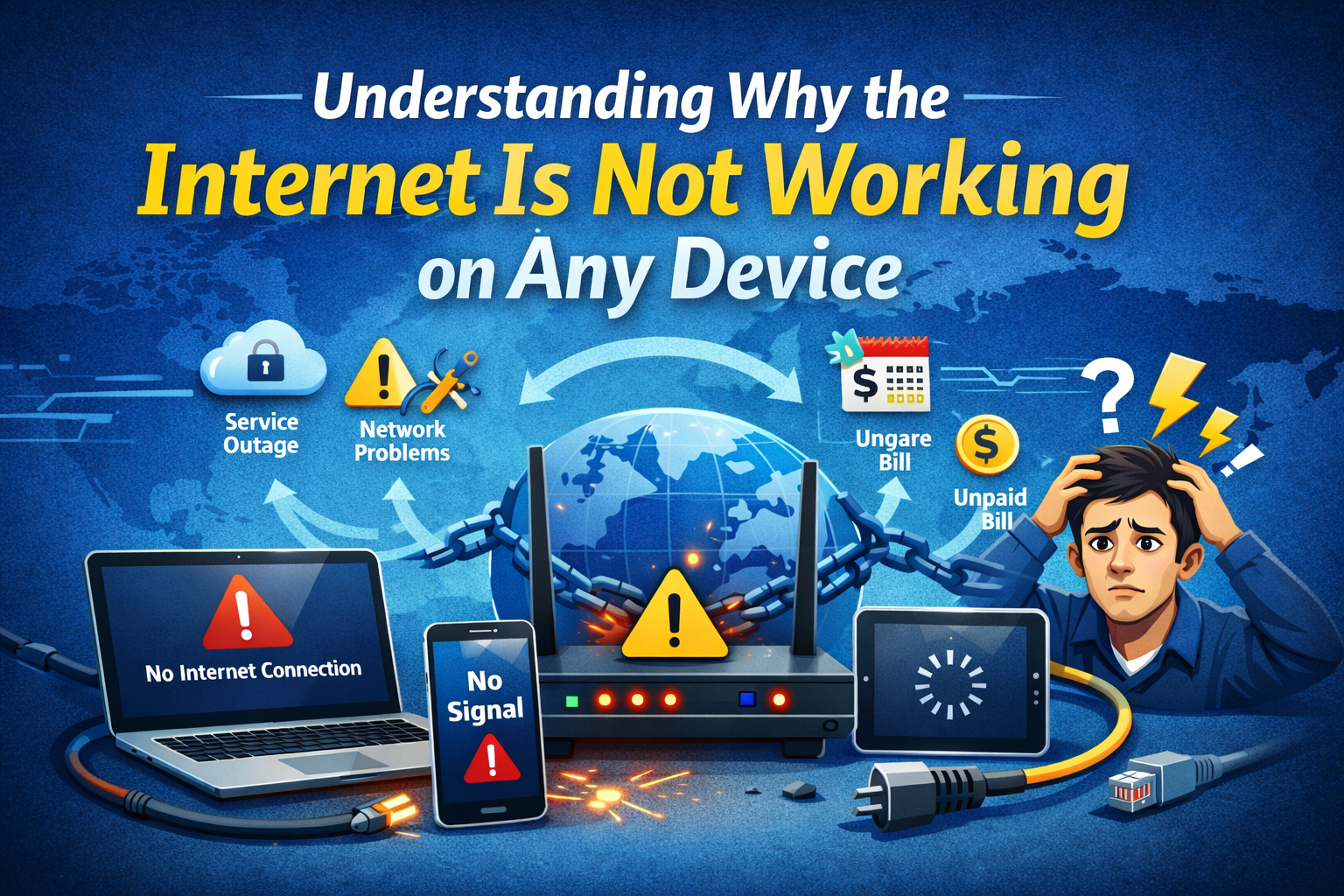
Before fixing the problem, it helps to understand why it happens. When the internet is not working on any device, the issue usually falls into one of these categories:
- Internet service provider (ISP) outage
- Router or modem problem
- Loose or damaged cables
- Incorrect network settings
- DNS or IP address issues
Let’s go through each solution step by step, starting with the easiest fixes.
Step 1: Check If Your Internet Service Is Down
How to Confirm an ISP Outage
Sometimes, the problem is not in your home at all. Your internet provider may be having a temporary outage.
What to do:
- Check your ISP’s website or social media page using mobile data.
- Ask neighbors if their internet is working.
- Look for red or blinking lights on your modem.
Real-world example:
If your Wi-Fi was working fine last night but stopped completely this morning on all devices, an ISP outage is very likely.
If there is an outage, you’ll need to wait until your provider fixes it.
Step 2: Restart Your Modem and Router (Most Important Fix)
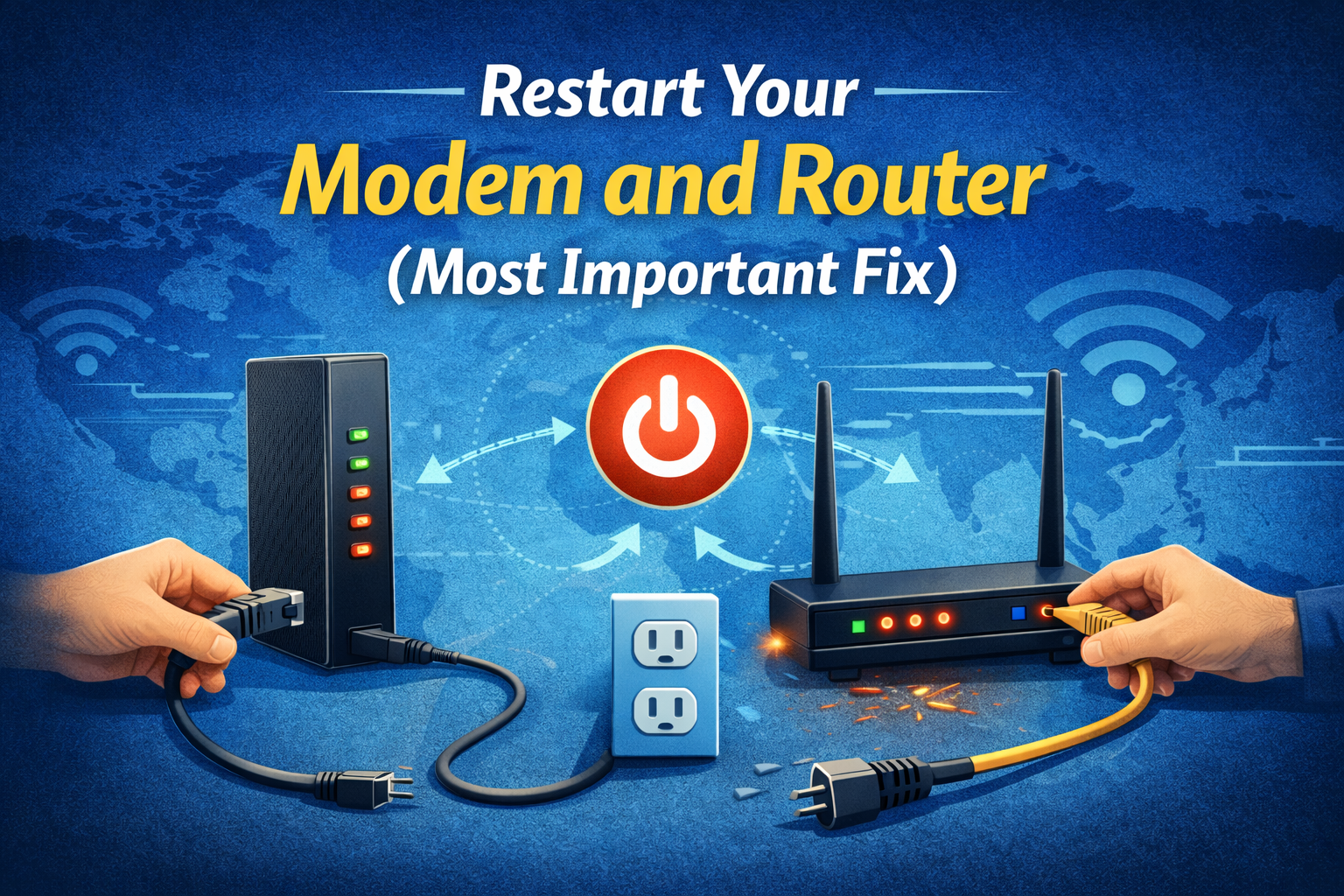
This simple step solves more than 50% of internet issues.
How to Restart Properly
- Turn off your modem and router.
- Unplug both devices from power.
- Wait 30–60 seconds.
- Plug in the modem first and wait until all lights are stable.
- Plug in the router and wait 2–3 minutes.
- Reconnect your devices to Wi-Fi.
Why this works:
Restarting clears temporary glitches, resets network connections, and assigns a fresh IP address.
Step 3: Check All Cables and Connections
Loose or damaged cables are a very common reason the internet is not working on any device.
What to Check
- Power cable to modem and router
- Ethernet cable between modem and router
- Wall cable (fiber, DSL, or coaxial)
Tip:
If a cable looks bent, frayed, or broken, replace it.
Example:
A pet chewing on a cable or cleaning staff accidentally unplugging the modem can disconnect your entire network.
Step 4: Check Router Lights and Status
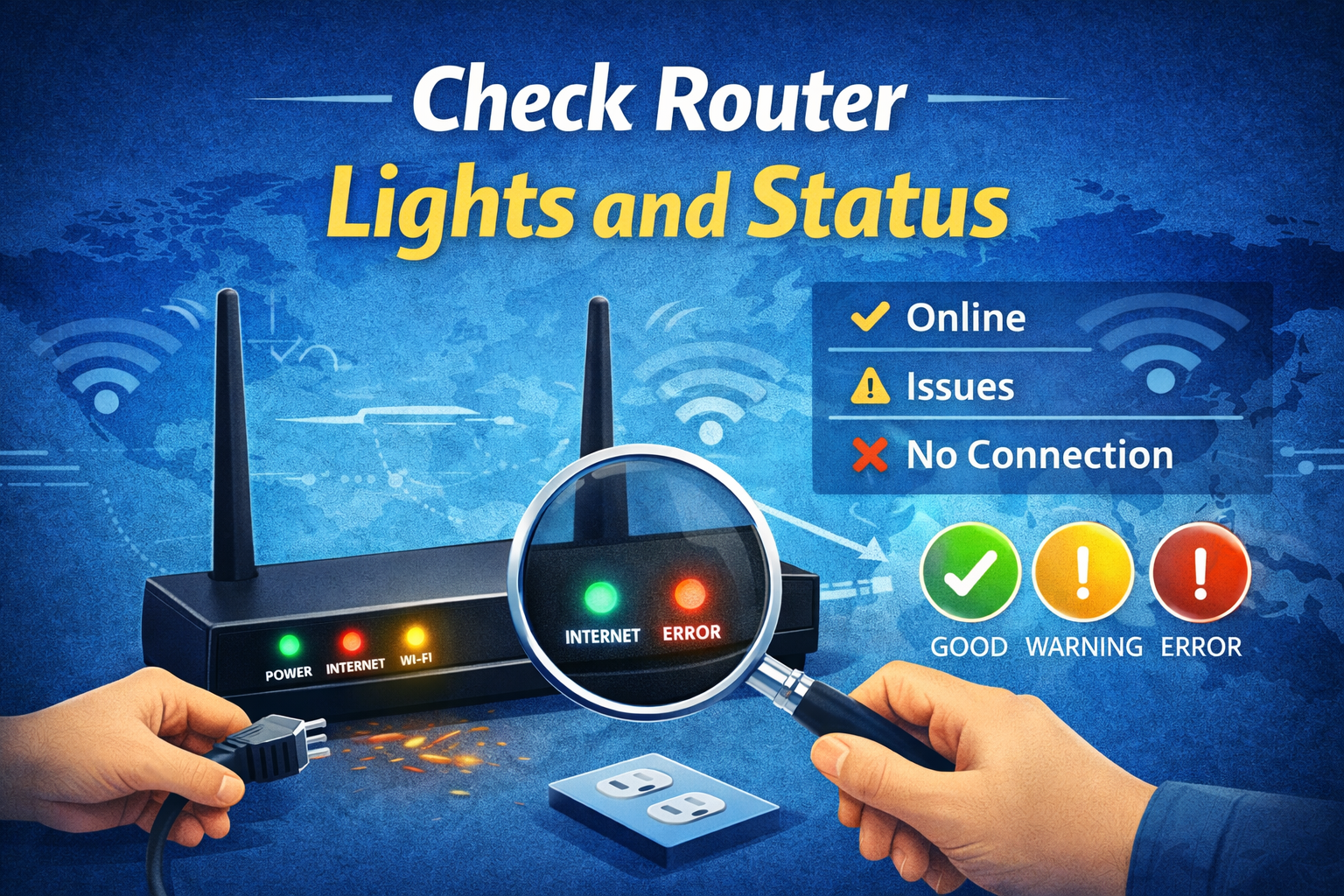
Your router and modem lights tell you what’s wrong.
Common Light Meanings
- Green/Blue (Solid): Normal
- Blinking Red: Connection problem
- No Light: Power issue
Check the label under your router or the manufacturer’s website to understand your specific model.
Step 5: Test With One Device Using Ethernet
To rule out Wi-Fi issues, connect one device directly to the router using an Ethernet cable.
What This Tells You
- Internet works with cable: Wi-Fi problem
- Internet still doesn’t work: Router, modem, or ISP issue
If wired internet works, try restarting the router again and changing the Wi-Fi channel in router settings.
Step 6: Forget and Reconnect to Wi-Fi Network
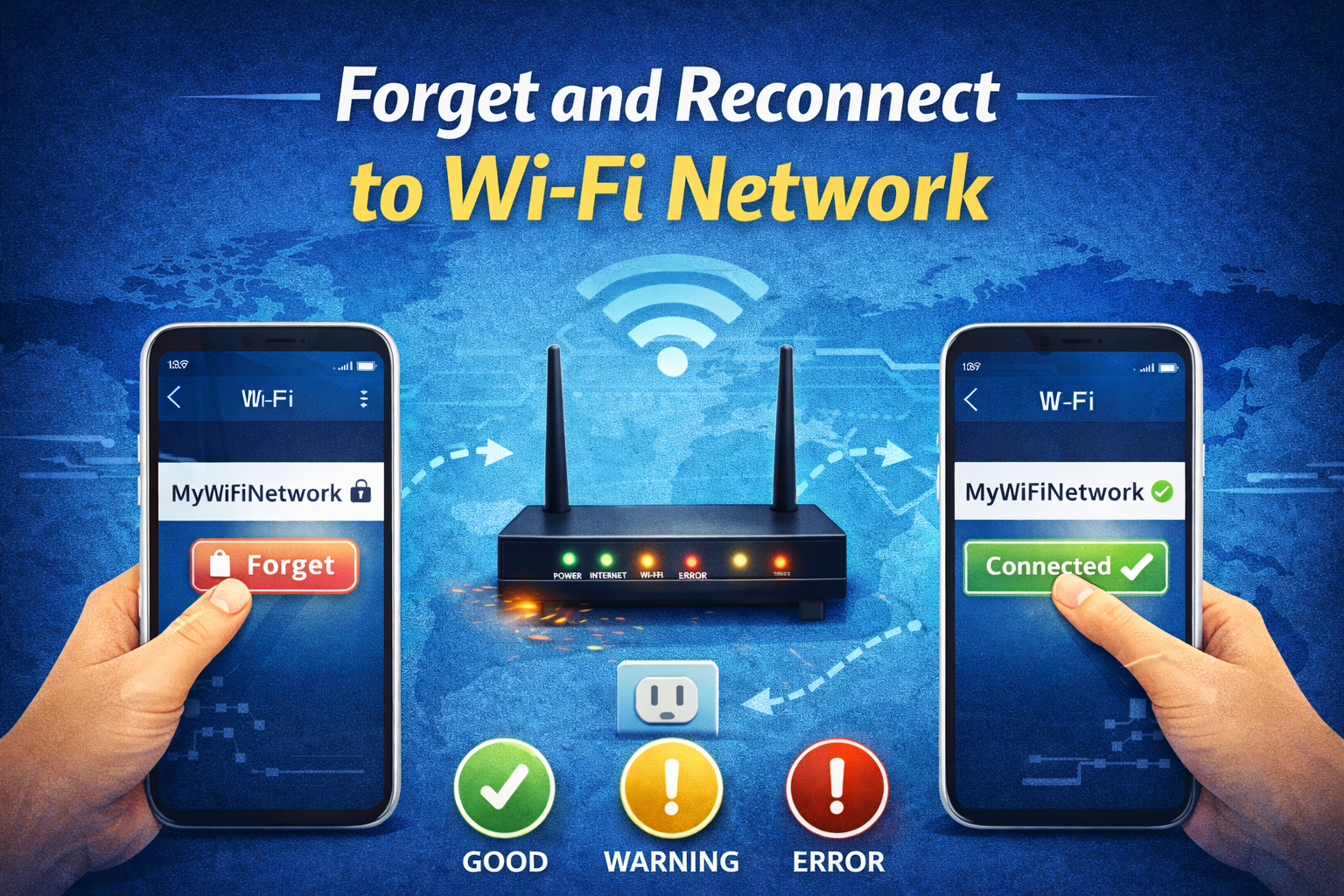
Sometimes devices store incorrect network data.
How to Do It
- Open Wi-Fi settings on your device.
- Tap on your Wi-Fi name.
- Select Forget Network.
- Restart the device.
- Reconnect and enter the password again.
This step is especially useful for phones and laptops.
Step 7: Check Date, Time, and Network Settings
Incorrect system settings can block internet access.
Quick Checks
- Enable Automatic Date & Time
- Turn off Airplane Mode
- Disable any VPN temporarily
Real-world example:
A VPN app may stay active after an update and block all internet access across devices.
Step 8: Reset Network Settings (Advanced but Safe)
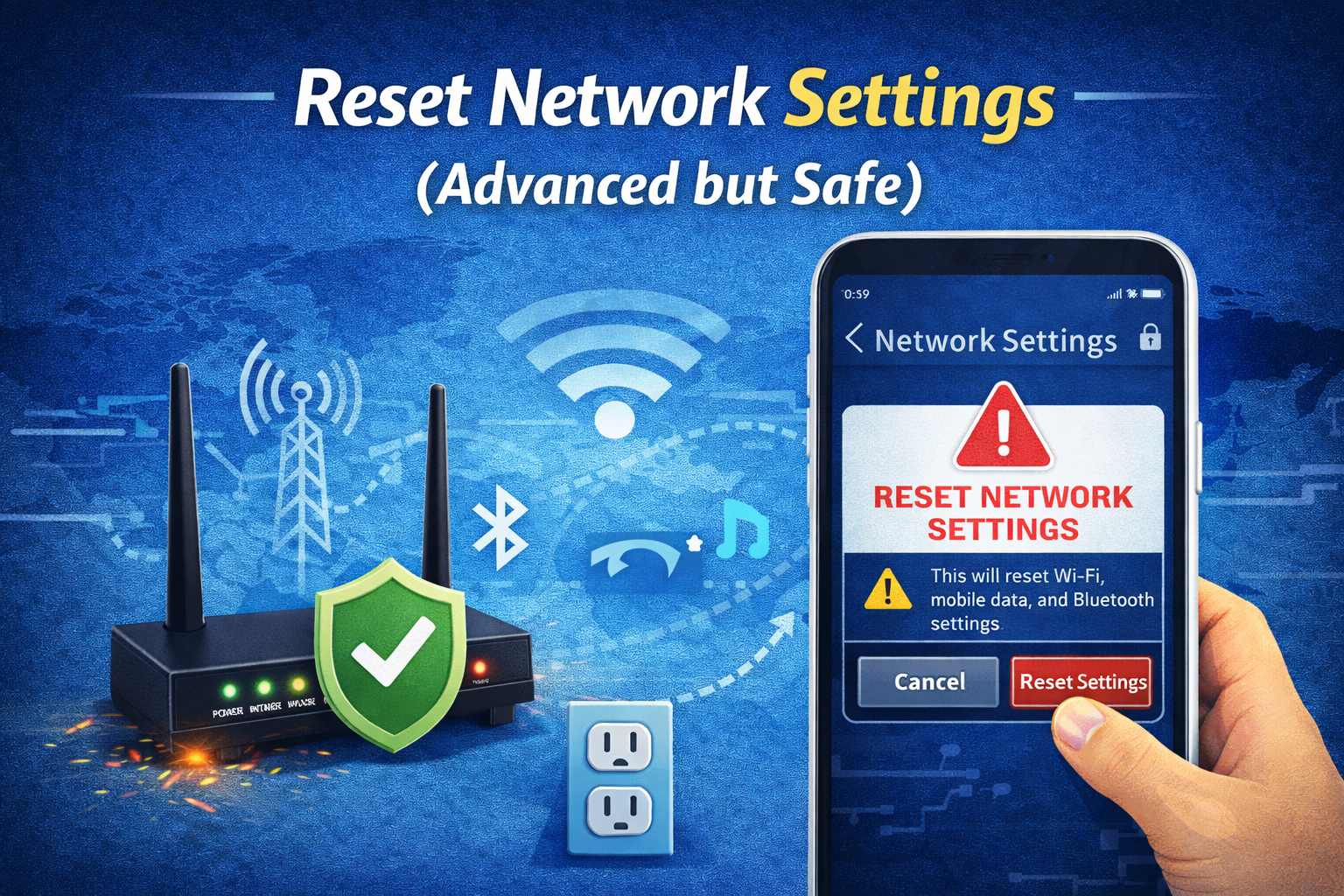
If basic steps fail, reset network settings on one device to test.
What This Does
- Clears Wi-Fi, Bluetooth, and network configs
- Does NOT delete personal data
Try this on one device first before doing it on all devices.
Step 9: Change DNS Settings
DNS issues can cause the internet to stop working on all devices.
Recommended Public DNS
- Google DNS:
8.8.8.8and8.8.4.4 - Cloudflare DNS:
1.1.1.1
You can change DNS settings in router settings so all devices benefit.
Step 10: Reset Router to Factory Settings (Last Resort)
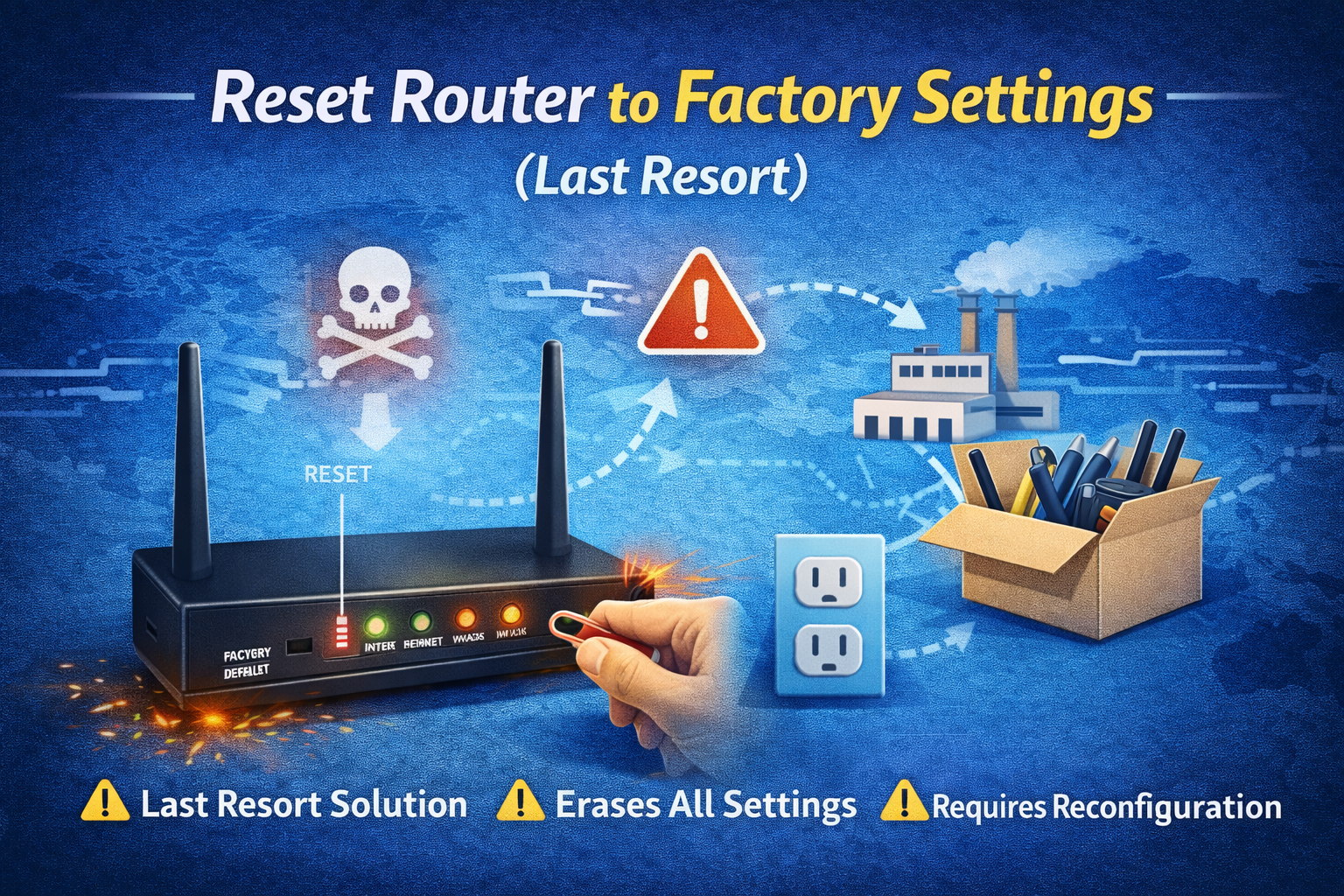
If nothing works, a full router reset may help.
How to Reset
- Find the Reset button (small hole).
- Hold it for 10–15 seconds.
- Reconfigure Wi-Fi name and password.
Only do this if you remember your ISP login details.
When to Contact Your Internet Provider
Call your ISP if:
- Modem shows red or no signal
- Internet is down for many hours
- You see error messages like “No WAN Connection”
They can run remote diagnostics or replace faulty equipment.
FAQ: Internet Not Working on Any Device
1. Why is my Wi-Fi connected but internet not working on any device?
This usually means your router is working, but there is no connection to your ISP. Restart the modem and router.
2. Can a router cause internet problems on all devices?
Yes. A faulty or overheating router can block internet access for every connected device.
3. How long should I unplug my router to reset it?
At least 30 seconds. This allows internal memory to fully clear.
4. Does changing DNS really help internet issues?
Yes. DNS problems are common and changing DNS can instantly restore access.
5. Should I replace my router if the internet keeps dropping?
If your router is more than 4–5 years old, replacement can significantly improve stability.
Conclusion
When the internet is not working on any device, it usually points to a network-wide issue rather than a single device problem. By following the steps in this guide—checking outages, restarting equipment, inspecting cables, and adjusting settings—you can fix most internet problems at home without professional help.
Start with the simplest solutions first, and only move to advanced steps if needed. In most cases, your internet will be back up and running in just a few minutes.