How to Fix WiFi Connected but No Internet Access
If your device shows WiFi connected but no internet access, you’re not alone. This is one of the most common internet problems faced by beginners and everyday users. You may see full WiFi bars, but websites won’t load, apps can’t connect, and videos refuse to play. Frustrating, right?
The good news? In most cases, this problem is easy to fix at home—no tech expert needed. In this guide, you’ll learn how to fix WiFi connected but no internet access using simple, step-by-step solutions that work on phones, laptops, and tablets. We’ll also explain why this happens, using real-world examples you can relate to.
What Does “WiFi Connected but No Internet Access” Mean?
When you see this message, it means:
- Your device is connected to the router (WiFi signal works)
- But the router is not properly connected to the internet
Think of WiFi like a road and the internet like the destination. Your car is on the road—but the road doesn’t lead anywhere.
Common Causes of WiFi Connected but No Internet Access
Before fixing the issue, it helps to understand what usually causes it:
- Temporary router or modem errors
- Internet Service Provider (ISP) outage
- Incorrect network settings
- DNS problems
- IP address conflicts
- Outdated network drivers
- VPN or firewall blocking the connection
Now let’s fix it step by step.
Step 1: Check If the Internet Is Actually Down
Before changing any settings, confirm whether the problem is your device or the internet itself.
What to do:
- Connect another device (phone, laptop, tablet) to the same WiFi
- Try opening a website
Results:
- No devices have internet → Likely router or ISP issue
- Other devices work → Problem is with your device
Real-world example:
Your phone and laptop both say “WiFi connected but no internet access.” This usually means your ISP is temporarily down.
Step 2: Restart Your Router and Modem (Most Effective Fix)
This simple step fixes more than 50% of WiFi issues.
Steps:
- Turn off the router and modem
- Unplug both from power
- Wait 30–60 seconds
- Plug them back in
- Wait for all lights to stabilize
Why it works:
Restarting clears temporary bugs, refreshes your IP address, and reconnects your router to the ISP.
Step 3: Turn WiFi Off and On (Device-Side Refresh)
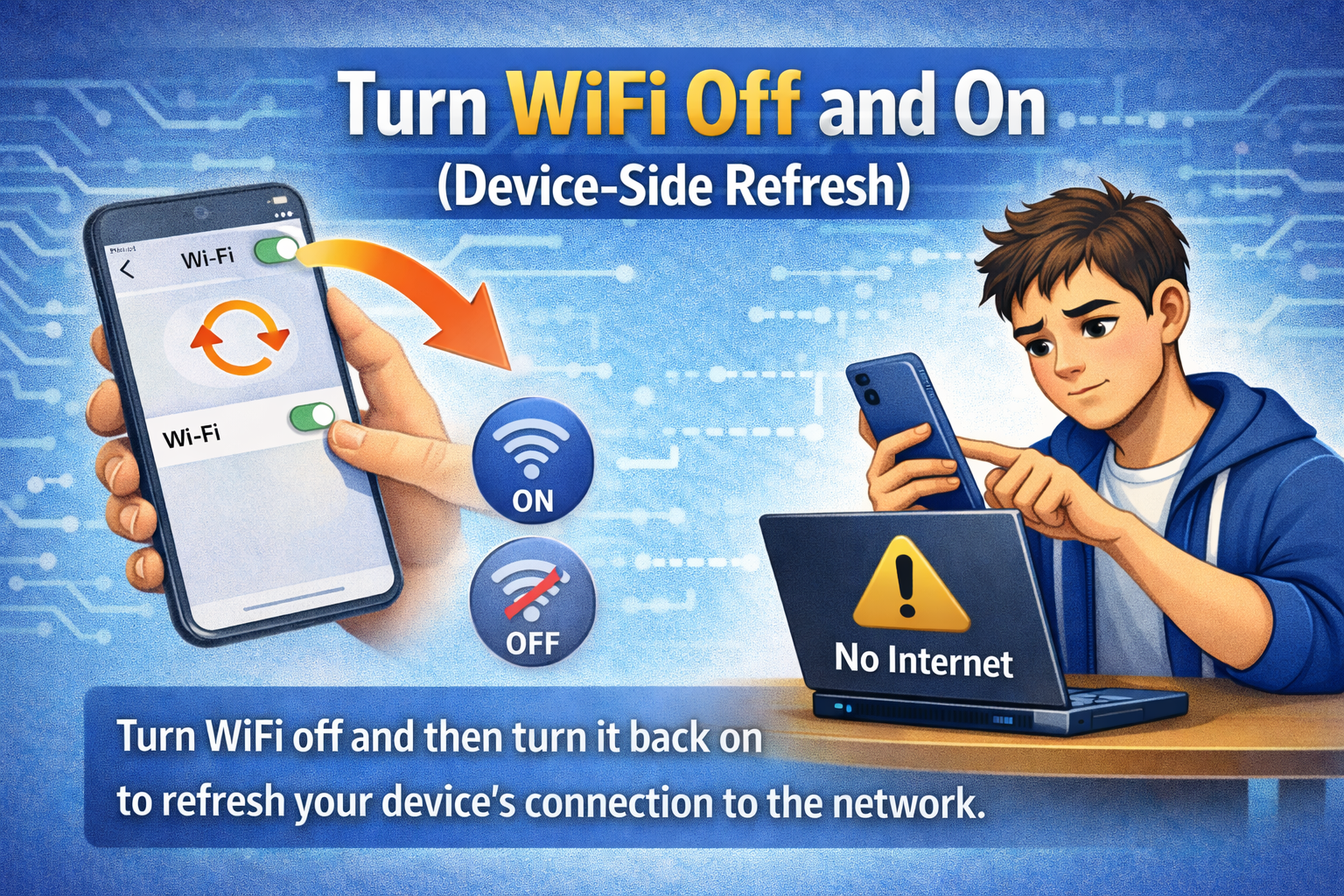
Sometimes your device just needs a quick network reset.
On phone or laptop:
- Turn WiFi OFF
- Wait 10 seconds
- Turn WiFi ON
- Reconnect to your network
This refreshes the connection between your device and the router.
Step 4: Forget and Reconnect to the WiFi Network
If saved WiFi settings are corrupted, this can cause WiFi connected but no internet access.
Steps:
- Go to WiFi settings
- Tap or click your WiFi name
- Select Forget / Remove Network
- Restart your device
- Reconnect and re-enter the password
Example:
You recently changed your WiFi password, but your phone keeps using old settings. Forgetting and reconnecting fixes it.
Step 5: Check Date and Time Settings
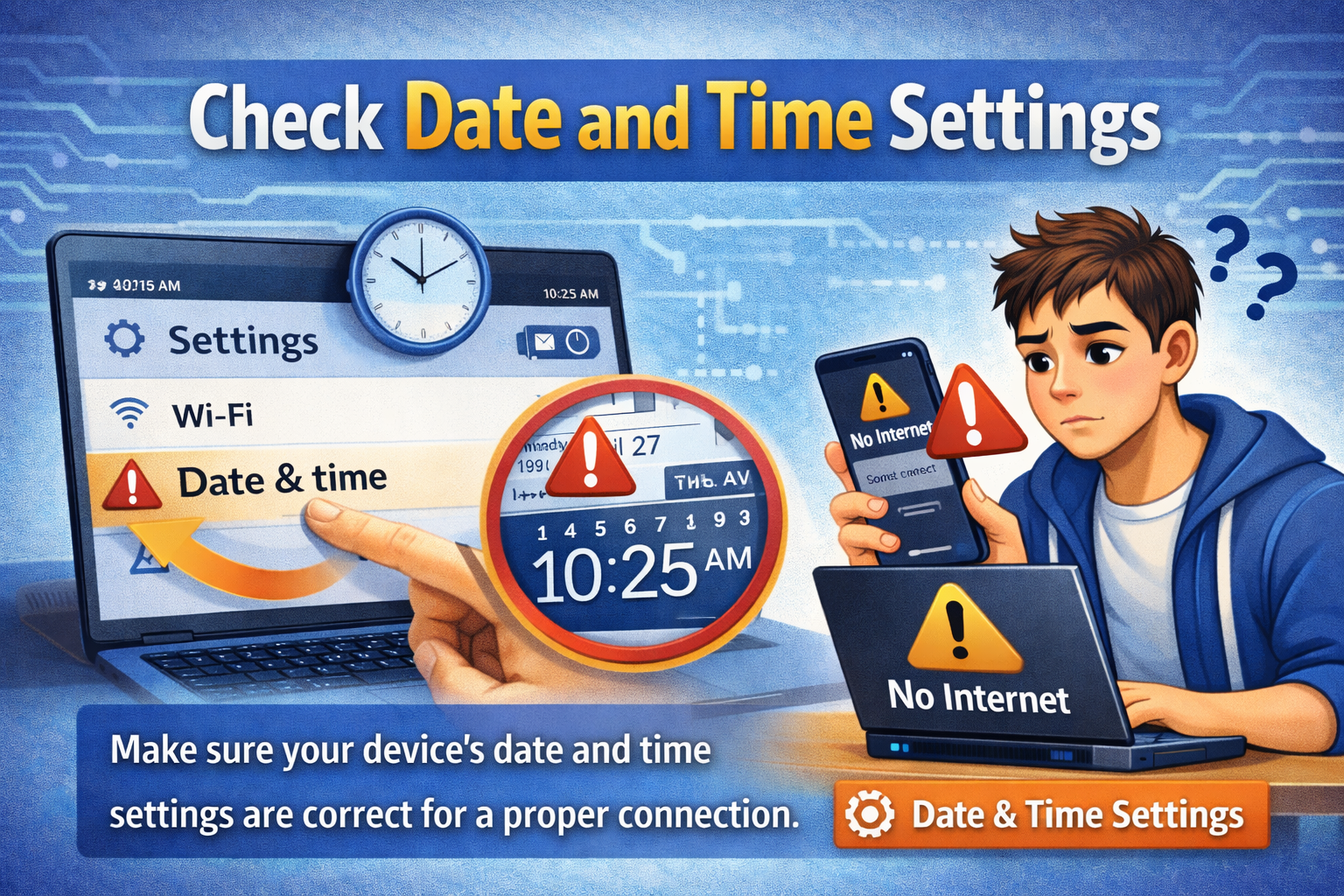
Incorrect date or time can block secure internet connections.
Fix:
- Enable Automatic Date & Time
- Use network-provided time zone
This is especially important for HTTPS websites and apps.
Step 6: Disable VPN or Proxy (Very Common Cause)
VPNs can block internet access even when WiFi is connected.
What to do:
- Turn off your VPN
- Disconnect and reconnect WiFi
- Test the internet again
If the internet works after disabling VPN, the VPN server was the issue.
Step 7: Fix DNS Problems
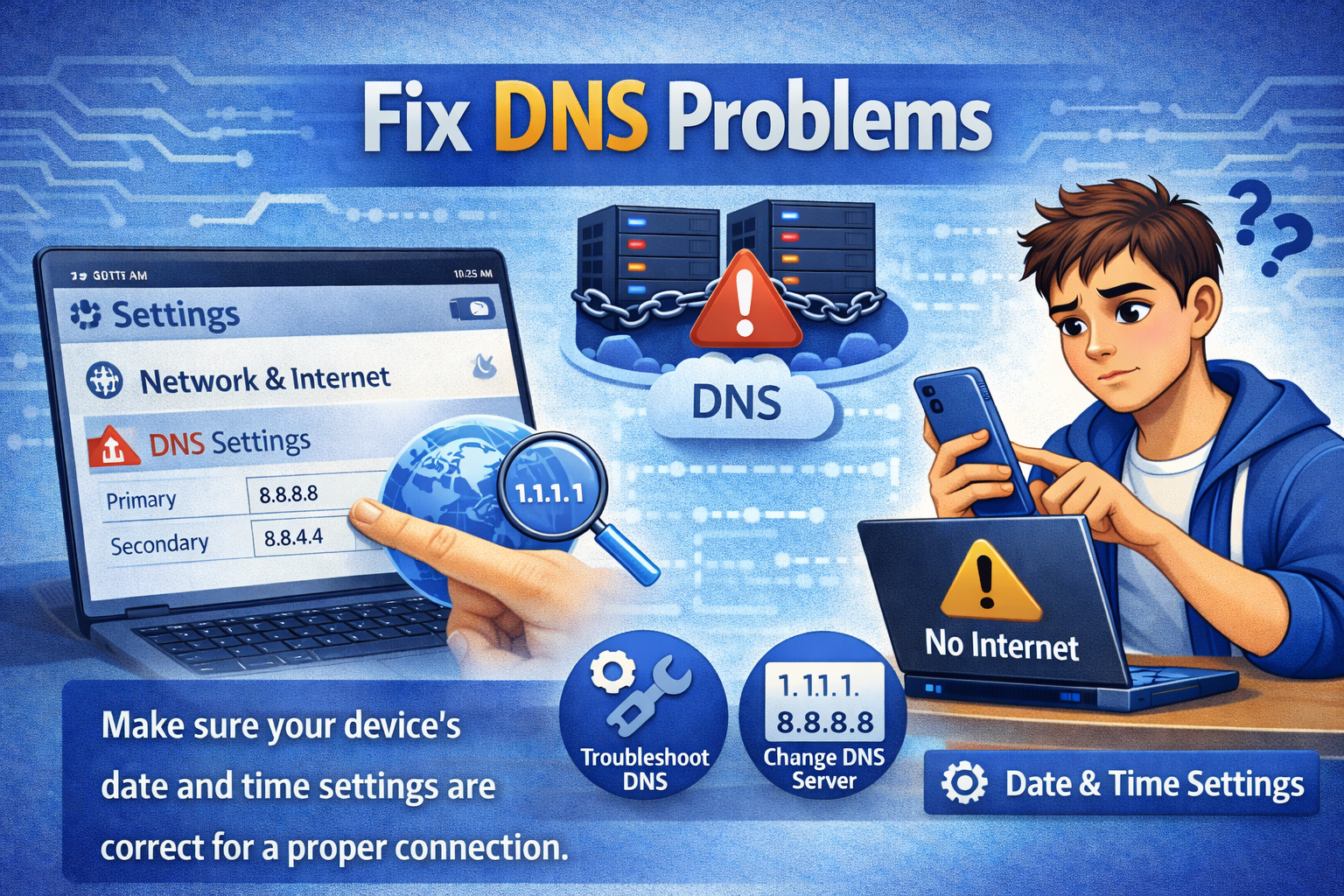
DNS translates website names into IP addresses. When DNS fails, you get no internet access.
Quick DNS fix (works on most devices):
- Set DNS to:
- 8.8.8.8
- 8.8.4.4
These are Google’s public DNS servers—fast and reliable.
Real-world example:
WiFi connects, but only some websites load. Changing DNS usually solves this.
Step 8: Renew IP Address (Advanced but Safe)
Your device may not be getting a valid IP address from the router.
On Windows:
- Open Command Prompt
- Type:
ipconfig /release ipconfig /renew - Press Enter
This forces your device to request a new network address.
Step 9: Update Network Drivers (For PC/Laptop Users)
Outdated or corrupted drivers can cause internet issues.
Steps:
- Open Device Manager
- Find Network Adapters
- Right-click your WiFi adapter
- Select Update driver
After updating, restart your computer.
Step 10: Reset Network Settings (Last Resort)
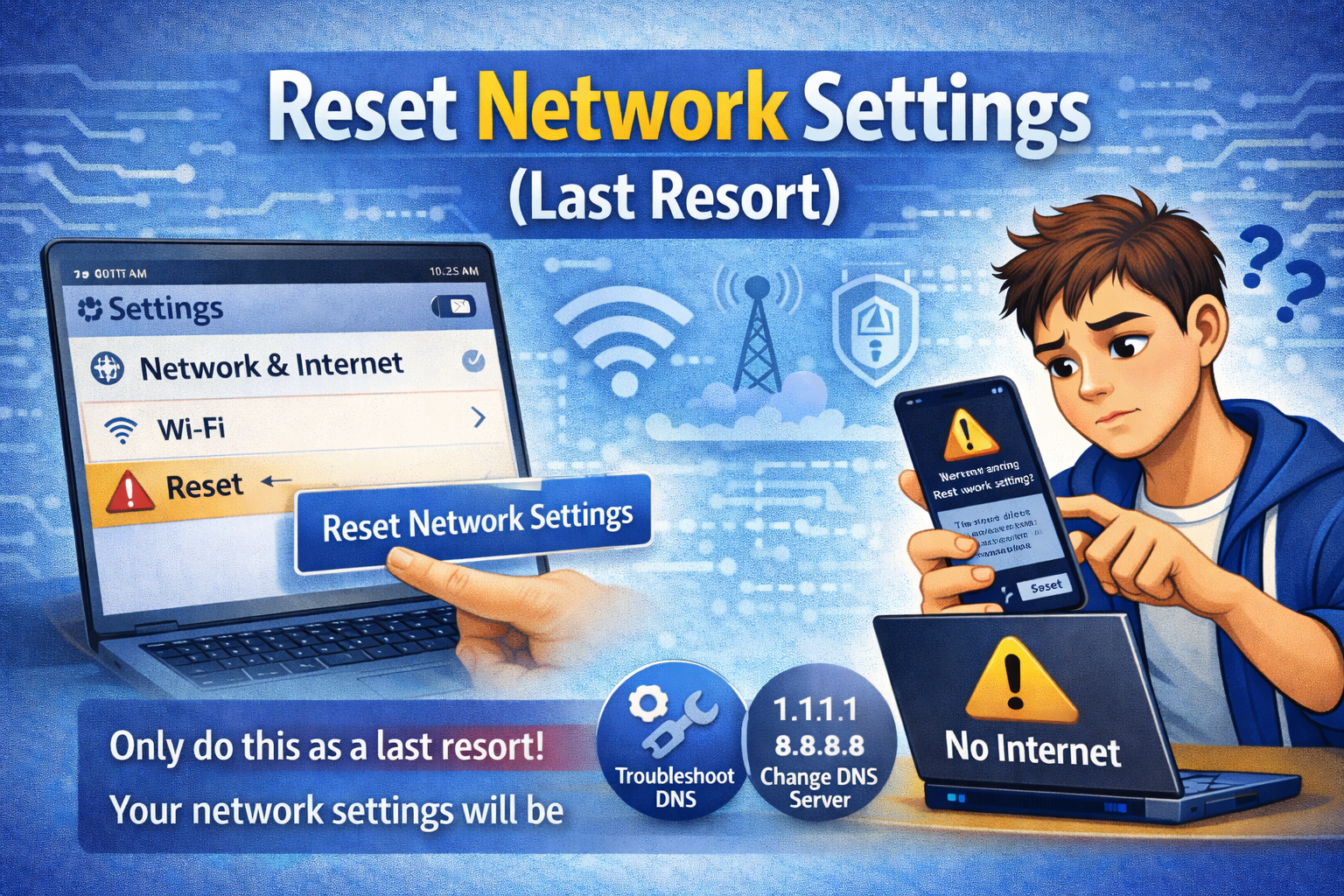
If nothing else works, reset network settings.
What this does:
- Clears WiFi, Bluetooth, VPN, and mobile network settings
- Fixes hidden configuration errors
You will need to reconnect to WiFi after this.
When the Problem Is Your Internet Provider
If:
- Router restart doesn’t help
- All devices have no internet
- Router shows red or blinking warning lights
Then the issue is likely your ISP.
What to do:
- Check ISP outage page
- Contact customer support
- Ask neighbors if their internet works
FAQ: WiFi Connected but No Internet Access
1. Why does my WiFi say connected but no internet?
Because your device is connected to the router, but the router isn’t connected to the internet.
2. Can a router cause no internet access?
Yes. Firmware bugs, overheating, or temporary errors can block internet access.
3. Does restarting the router really help?
Yes. It’s the most effective and simplest fix for this issue.
4. Why does this happen only on one device?
The device may have incorrect DNS, IP settings, or outdated drivers.
5. Should I reset my router?
Only if all other steps fail. Try restarting first, then network reset on the device.
Conclusion
The WiFi connected but no internet access problem is annoying—but rarely serious. In most cases, a simple router restart, reconnecting WiFi, or disabling a VPN fixes the issue within minutes. By following the step-by-step solutions in this guide, even beginners can troubleshoot and restore their internet connection confidently.
If the problem keeps coming back, consider updating your router firmware or contacting your internet provider. A stable connection is essential—and now you know exactly how to fix it.