How to Fix DNS Server Not Responding Error on Windows
Seeing the DNS Server Not Responding error on Windows can be frustrating—especially when your internet looks connected but websites refuse to load. This problem is common on Windows 10 and Windows 11, and the good news is that it’s usually easy to fix, even if you’re not a tech expert.
In this guide, you’ll learn how to fix DNS Server Not Responding error on Windows using simple, step-by-step solutions. We’ll explain everything in clear English, show real-world examples, and help you get back online quickly without reinstalling Windows or calling technical support.
What Is the DNS Server Not Responding Error?
DNS stands for Domain Name System. It works like the internet’s phone book.
- You type
google.com - DNS translates it into an IP address (like
142.250.72.14) - Your browser connects to the website
When you see the DNS Server Not Responding error, Windows can’t communicate with the DNS server. As a result, websites fail to load—even though your Wi-Fi or Ethernet shows “Connected.”
Common Error Messages You May See
- “DNS server not responding”
- “This site can’t be reached”
- “DNS_PROBE_FINISHED_NO_INTERNET”
- “The DNS server is not responding”
Why DNS Server Not Responding Error Happens on Windows
Before fixing the issue, it helps to understand what causes it.
Common Causes
- Temporary network glitches
- Incorrect DNS settings
- Router or modem problems
- Corrupted DNS cache
- Firewall or antivirus interference
- Outdated or broken network drivers
- ISP DNS server outage
Real-world example:
After a Windows update, many users report losing internet access even though Wi-Fi works. In most cases, the update resets or conflicts with DNS settings.
How to Fix DNS Server Not Responding Error on Windows (Step-by-Step)

Let’s start with the easiest fixes and move to more advanced ones.
Restart Your Computer and Router (Quick Fix)
This simple step fixes more problems than you might expect.
Steps:
- Restart your Windows computer
- Turn off your modem and router
- Wait 30–60 seconds
- Turn the modem on first, then the router
- Reconnect and test the internet
Why this works:
It clears temporary network conflicts and refreshes your connection.
Check Your Internet Connection
Make sure the issue isn’t limited to one device.
Try This:
- Connect another device (phone or tablet) to the same network
- Try switching from Wi-Fi to Ethernet (or vice versa)
If other devices work:
The problem is likely with your Windows PC.
If nothing works:
Your ISP or router may be the cause.
Flush DNS Cache (Very Effective Fix)

Corrupted DNS cache is one of the most common reasons for DNS errors.
Steps:
- Press Windows + S, type cmd
- Right-click Command Prompt → Run as administrator
- Type the following commands one by one:
ipconfig /flushdns
ipconfig /release
ipconfig /renew
- Restart your browser
Real-world example:
Users who frequently switch networks (home, office, café Wi-Fi) often fix DNS errors instantly using this method.
Change DNS Server Address (Highly Recommended)
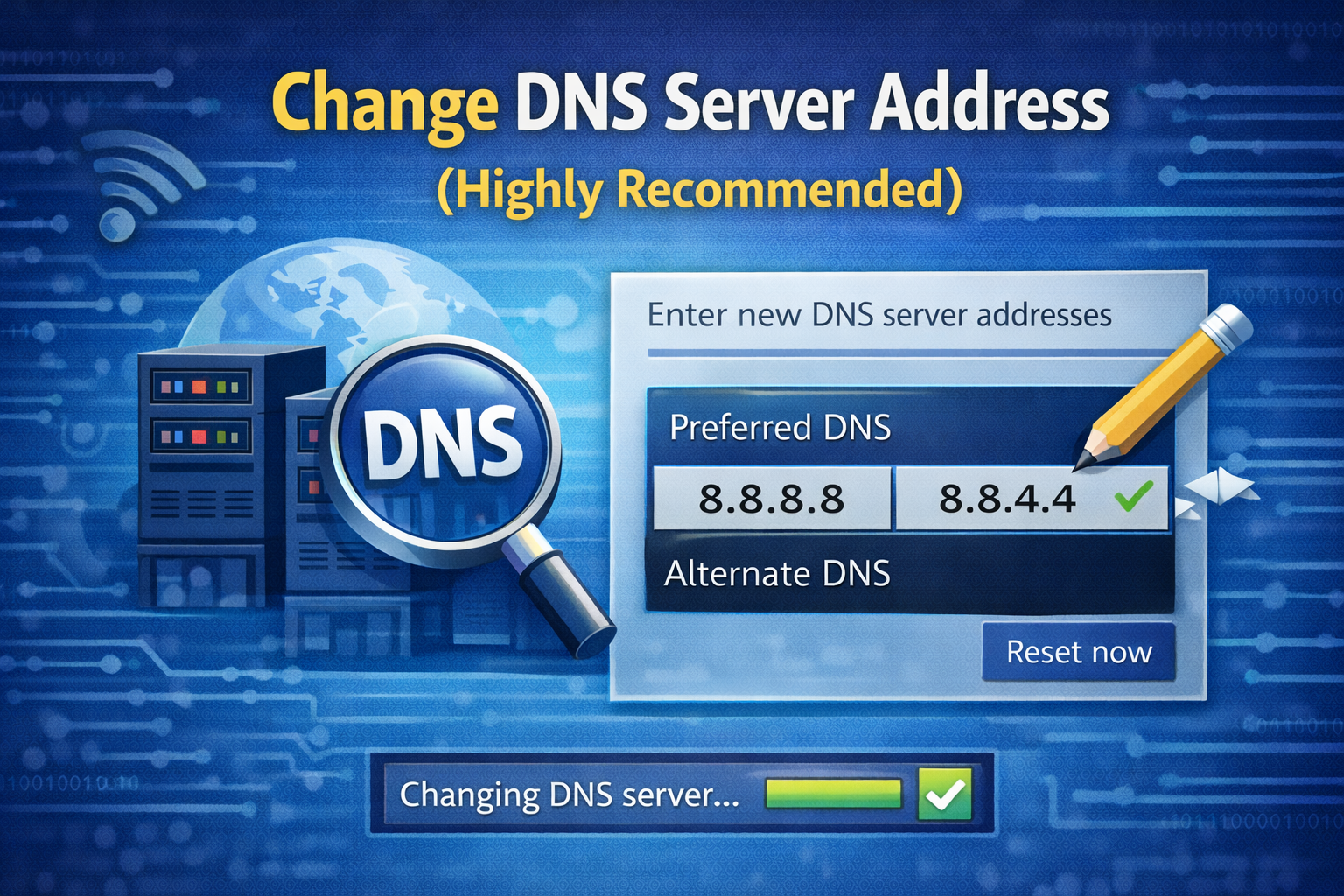
If your ISP’s DNS servers are slow or down, switching to public DNS often solves the problem.
Best Free DNS Servers
- Google DNS: 8.8.8.8 / 8.8.4.4
- Cloudflare DNS: 1.1.1.1 / 1.0.0.1
Steps:
- Open Control Panel
- Go to Network and Internet → Network and Sharing Center
- Click Change adapter settings
- Right-click your connection → Properties
- Double-click Internet Protocol Version 4 (IPv4)
- Select Use the following DNS server addresses
- Enter:
- Preferred DNS:
8.8.8.8 - Alternate DNS:
8.8.4.4
- Preferred DNS:
- Click OK and restart your PC
This fix alone resolves the DNS Server Not Responding error on Windows for most users.
Disable Antivirus or Firewall Temporarily
Some security software blocks DNS requests by mistake.
Steps:
- Temporarily disable your antivirus
- Turn off Windows Firewall (for testing only)
- Try opening a website
- Re-enable security after testing
Important:
Only disable protection briefly to test. If this fixes the issue, add your network as a trusted connection.
Update or Reinstall Network Drivers
Outdated or broken drivers can cause DNS problems.
Steps:
- Press Windows + X → Device Manager
- Expand Network adapters
- Right-click your adapter → Update driver
- Choose Search automatically for drivers
If that doesn’t work:
- Uninstall the driver
- Restart Windows (it reinstalls automatically)
Real-world example:
After upgrading from Windows 10 to Windows 11, many users fix DNS errors by updating Wi-Fi drivers.
Reset Network Settings (Advanced but Safe)
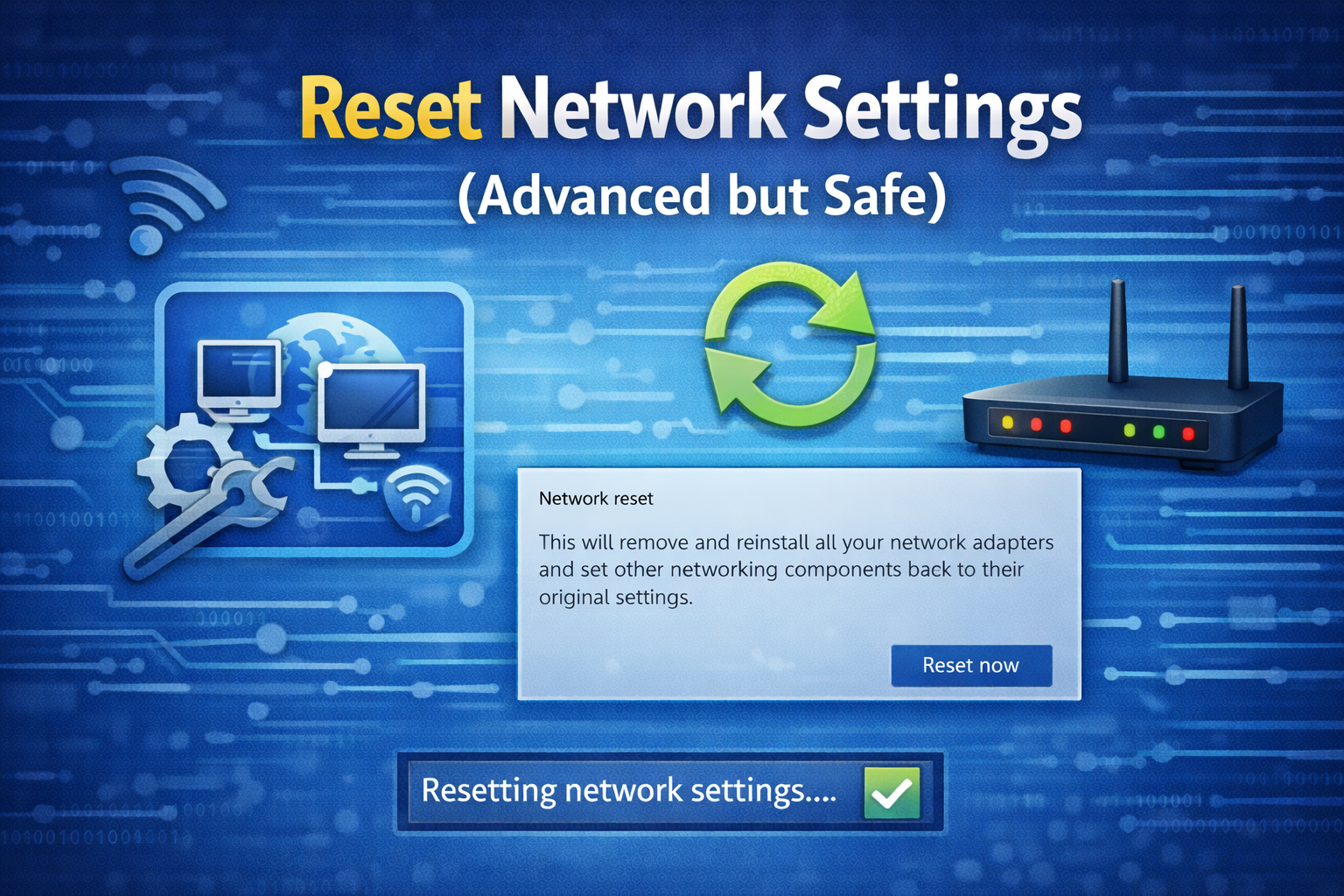
If nothing else works, reset all network settings.
Steps:
- Open Settings
- Go to Network & Internet
- Scroll down → Network reset
- Click Reset now
- Restart your PC
This removes saved Wi-Fi passwords, VPNs, and custom settings—but often fixes stubborn DNS issues.
Check Hosts File (Rare but Important)
Malware or manual changes can block websites via the hosts file.
Location:
C:\Windows\System32\drivers\etc\hosts
Open it with Notepad (as administrator) and make sure there are no strange website entries.
DNS Server Not Responding Error on Windows – FAQ
1. What does DNS server not responding mean?
It means Windows can’t communicate with the DNS server to translate website names into IP addresses.
2. Is DNS server not responding a Windows problem?
Not always. It can be caused by your router, ISP, DNS server, or network configuration.
3. Does changing DNS fix internet speed?
Yes, in many cases. Public DNS like Google or Cloudflare can be faster and more reliable.
4. Will resetting network settings delete my files?
No. It only resets network-related settings like Wi-Fi and VPNs.
5. Why does DNS error happen after Windows update?
Updates can reset drivers, firewall rules, or DNS settings, causing conflicts.
Final Thoughts
The DNS Server Not Responding error on Windows looks scary, but it’s usually easy to fix. In most cases, flushing DNS cache, changing DNS servers, or restarting your router solves the problem in minutes.
Start with simple solutions and move step by step. There’s no need to reinstall Windows or call your ISP unless the issue persists across all devices.