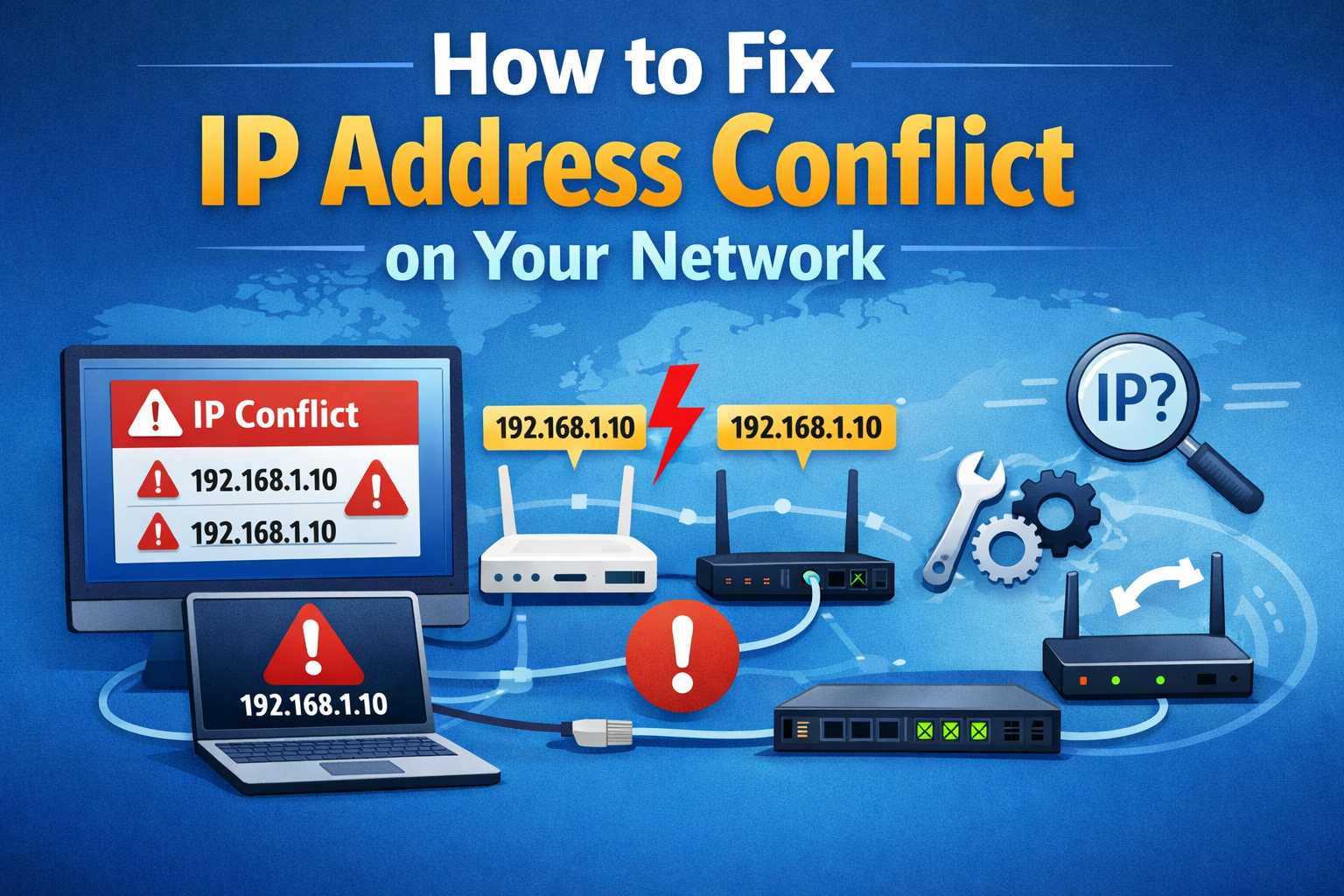
How to Fix IP Address Conflict on Your Network
If your internet suddenly stops working, shows strange error messages, or disconnects devices randomly, you may be dealing with an IP address conflict. This is a common network problem, especially in homes and small offices with many connected devices.
In this guide, you’ll learn how to fix IP address conflict on your network using simple, beginner-friendly steps. No advanced technical knowledge is required. We’ll explain what the problem is, why it happens, and how to fix it step by step using real-world examples.
What Is an IP Address Conflict?

An IP address is a unique number assigned to each device on your network (like a phone, laptop, or printer). It helps devices communicate with your router and the internet.
An IP address conflict happens when two devices are assigned the same IP address on the same network. When this occurs, one or both devices may lose internet access.
Common signs of an IP address conflict
- “IP address conflict detected” error message
- Internet works on some devices but not others
- Frequent disconnects from Wi-Fi
- Device shows “No internet access” even when Wi-Fi is connected
Why IP Address Conflicts Happen
Understanding the cause makes it easier to fix the problem.
1. Static IP addresses
If you manually set an IP address on a device, it may conflict with one assigned automatically by the router.
2. Router DHCP issues
Routers use DHCP (Dynamic Host Configuration Protocol) to assign IP addresses automatically. If DHCP malfunctions, duplicate IPs can occur.
3. Multiple routers on one network
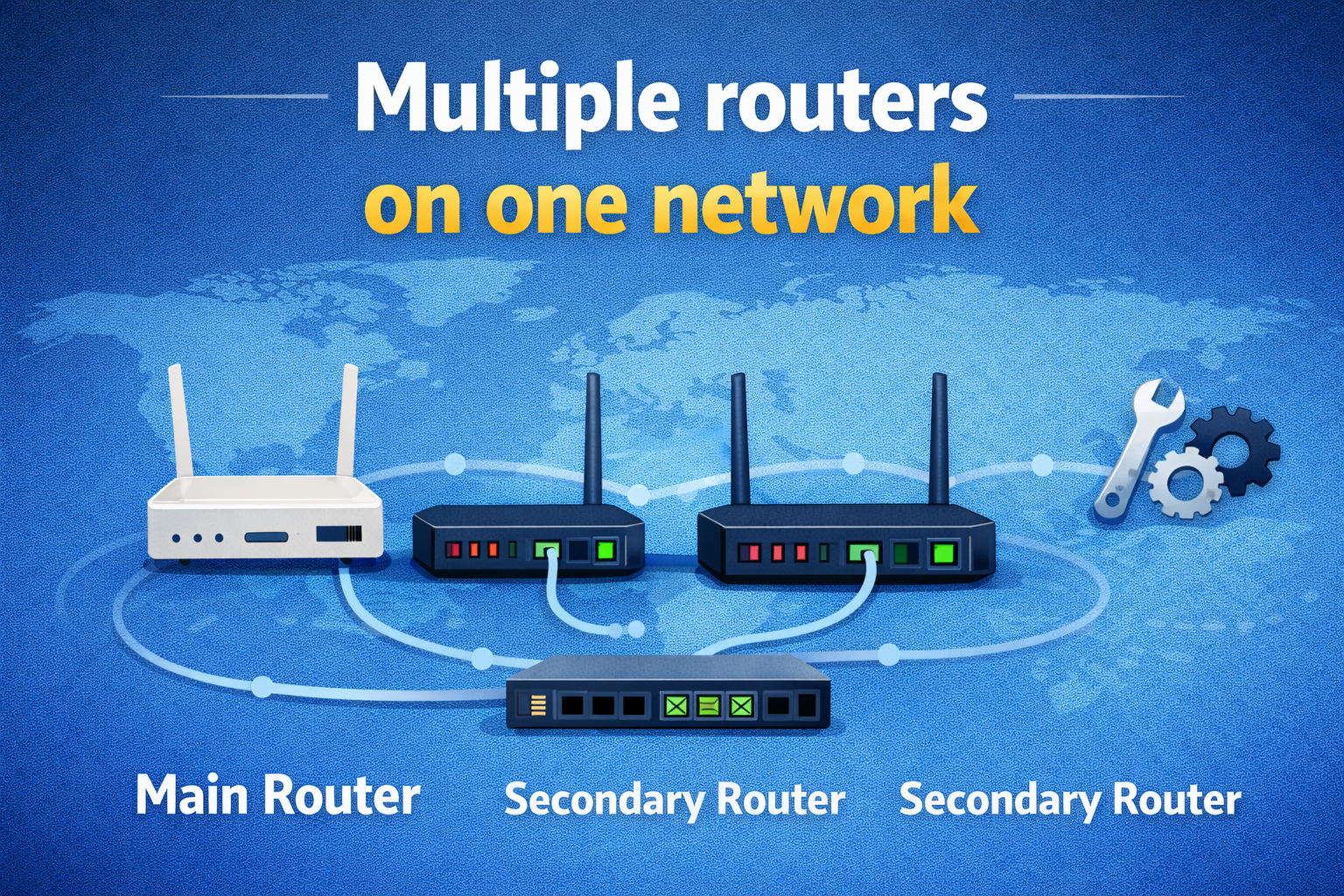
Using two routers without proper configuration can cause both to assign the same IP range.
4. Sleep or hibernate issues
Sometimes devices wake up with an old IP address that’s already in use by another device.
5. Network cloning or MAC conflicts
Cloned devices or misconfigured virtual machines can confuse the router.
How to Fix IP Address Conflict on Your Network (Step-by-Step)
Restart Your Router and Devices (Fastest Fix)
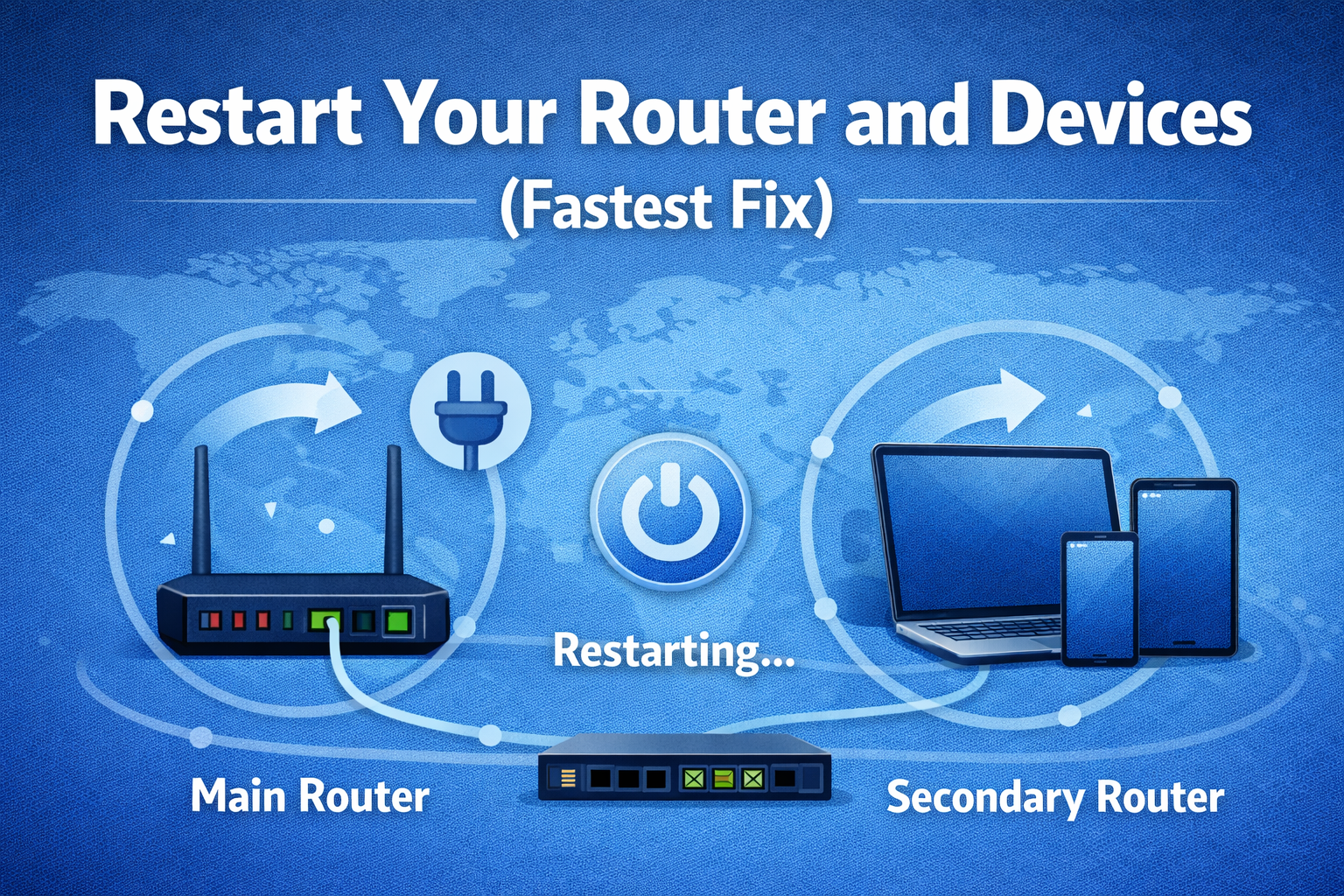
This simple step fixes most IP address conflicts.
Steps:
- Turn off your router and modem
- Unplug them from power
- Wait 2–3 minutes
- Plug them back in and turn them on
- Restart all affected devices
Why this works:
Restarting forces the router to reassign fresh IP addresses.
Real-world example:
A home user with a smart TV and two phones lost internet. Restarting the router immediately fixed the IP conflict.
Release and Renew the IP Address (Windows & Mac)
On Windows:
- Press Windows + R, type
cmd, press Enter - Type:
ipconfig /release - Press Enter
- Then type:
ipconfig /renew - Restart your computer
On Mac:
- Open System Settings → Network
- Select your Wi-Fi or Ethernet
- Click Details → TCP/IP
- Click Renew DHCP Lease
This forces your device to request a new, unique IP address.
Set Your Device to Obtain IP Automatically

Manually assigned IPs are a common cause of conflicts.
On Windows:
- Open Control Panel
- Go to Network and Sharing Center
- Click Change adapter settings
- Right-click your connection → Properties
- Select Internet Protocol Version 4 (IPv4)
- Choose:
- Obtain an IP address automatically
- Obtain DNS server address automatically
On Mac:
- Open System Settings → Network
- Select your network
- Go to TCP/IP
- Set Configure IPv4 to Automatically
Check and Fix Router DHCP Settings
Your router must have DHCP enabled to avoid IP conflicts.
Steps:
- Open a browser
- Enter your router’s IP (commonly
192.168.1.1) - Log in to the router admin panel
- Find DHCP Settings
- Make sure DHCP is Enabled
- Save and reboot the router
Tip:
Avoid narrowing the DHCP range too much. A larger range reduces conflicts.
Avoid Using Multiple Routers Incorrectly
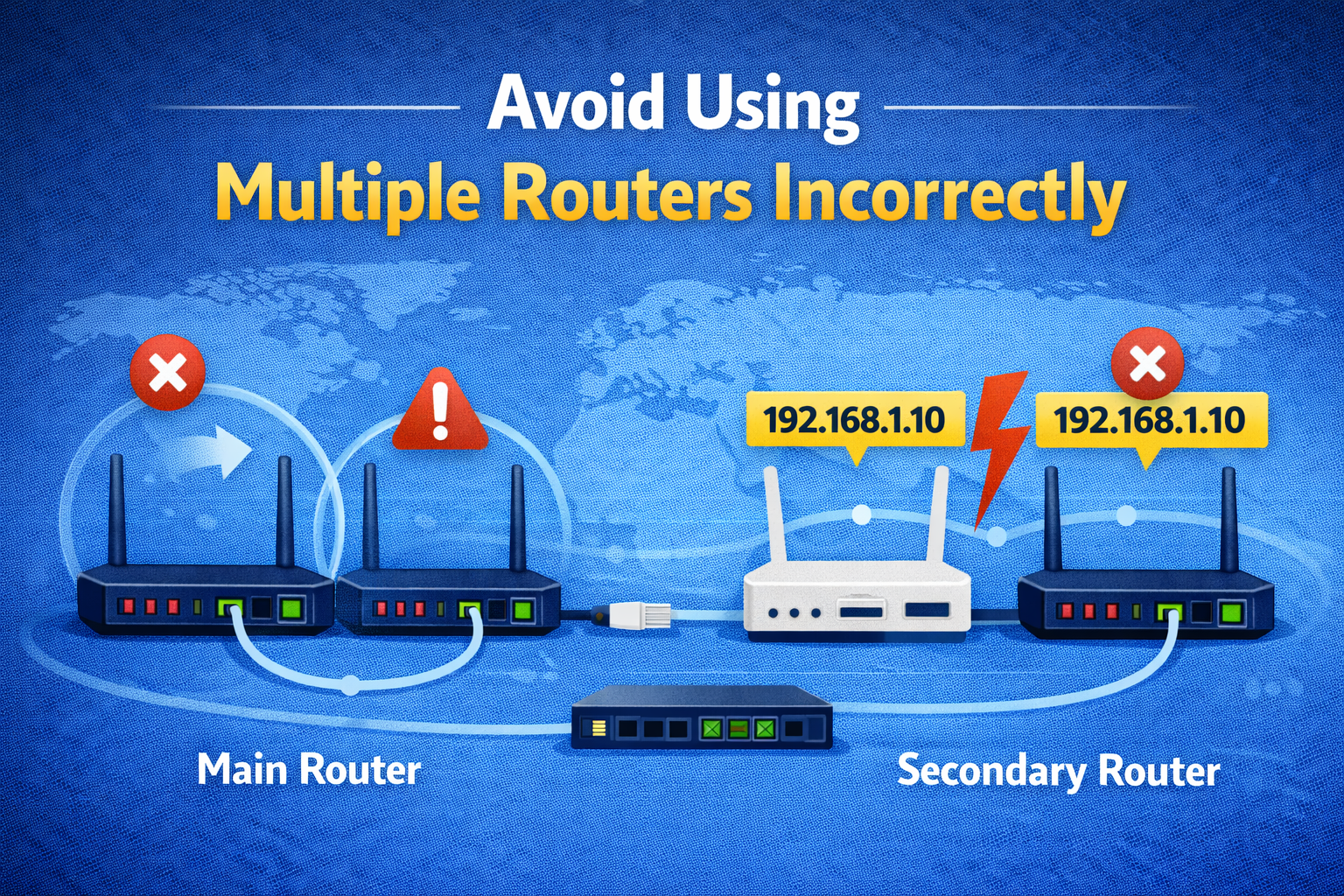
Using two routers on one network is risky.
What to do:
- Use one router only, or
- Set the second router to Access Point (AP) mode, or
- Disable DHCP on the secondary router
Example:
A small office used two routers for better coverage. Both assigned IP addresses, causing conflicts. Switching the second router to AP mode solved the issue.
Check for Devices Using Static IPs
Printers, servers, and IP cameras often use static IPs.
How to fix:
- Log in to the device settings
- Change static IPs to automatic, or
- Assign static IPs outside the DHCP range
This prevents overlap with automatically assigned addresses.
Update Router Firmware
Outdated firmware can cause DHCP bugs.
Steps:
- Log in to your router admin page
- Look for Firmware Update
- Download and install the latest version
- Restart the router
This improves network stability and prevents recurring IP conflicts.
Reset Network Settings (Last Resort)
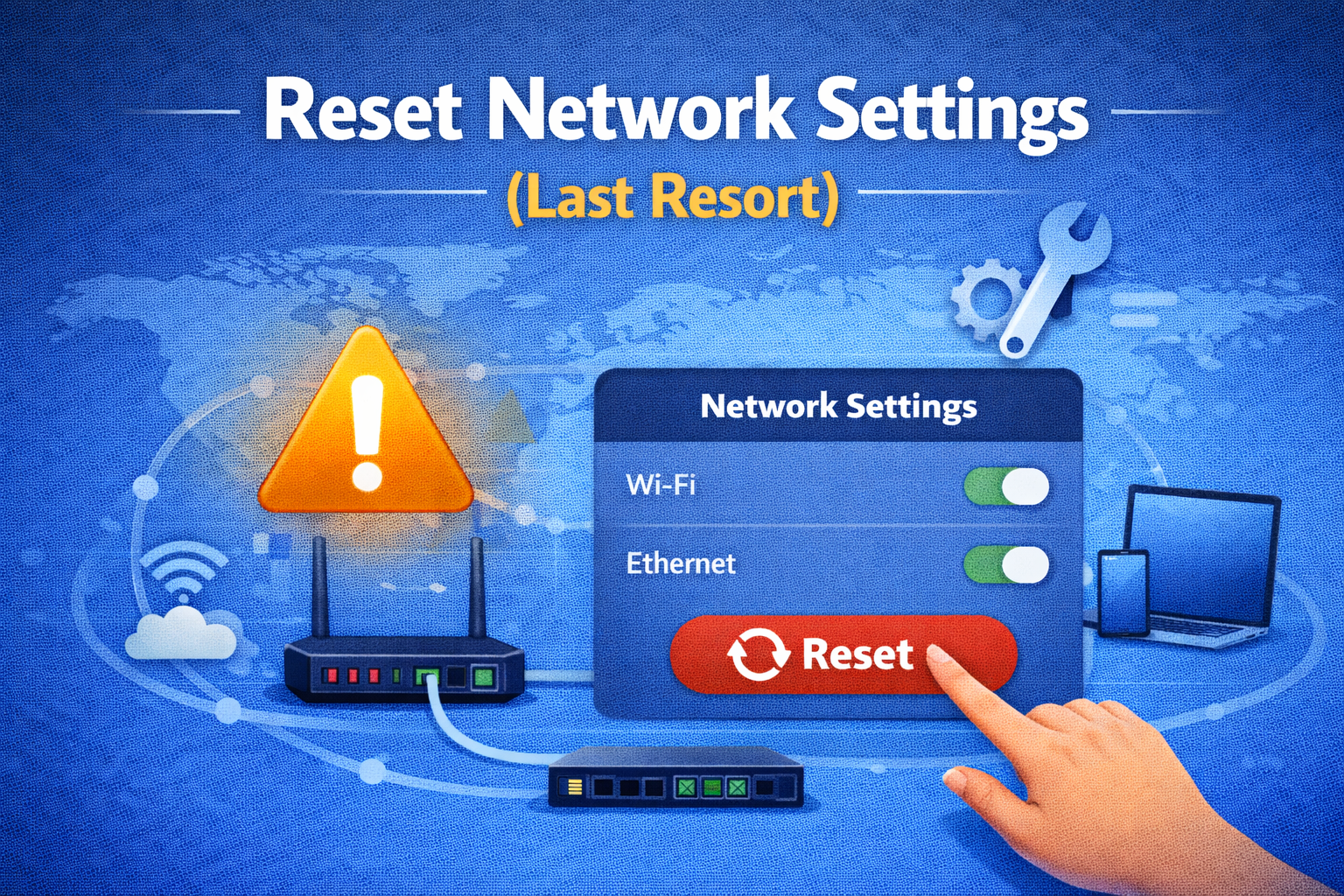
If nothing else works, reset network settings.
On Windows:
- Go to Settings → Network & Internet
- Choose Network reset
On Mac:
- Remove the network
- Restart the Mac
- Reconnect to Wi-Fi
This removes saved Wi-Fi passwords.
How to Prevent IP Address Conflicts in the Future
- Use DHCP instead of static IPs
- Avoid multiple routers with DHCP enabled
- Restart your router monthly
- Keep router firmware updated
- Assign static IPs carefully
Frequently Asked Questions (FAQ)
1. What causes IP address conflict on a home network?
It usually happens when two devices are assigned the same IP address by the router or through manual configuration.
2. Can IP address conflict affect Wi-Fi speed?
Yes. It can cause disconnects, failed connections, and unstable internet performance.
3. Does restarting the router always fix IP conflicts?
In most cases, yes. Restarting forces the router to reassign unique IP addresses.
4. Is an IP address conflict a security issue?
Not usually. It’s a configuration problem, not a hacking attempt.
5. How do I know if my device has a static IP?
Check your network settings. If the IP is manually entered instead of automatic, it’s static.
Conclusion
An IP address conflict may sound technical, but it’s actually one of the easiest network problems to fix. By restarting devices, renewing IP addresses, enabling DHCP, and avoiding misconfigured routers, you can restore your internet quickly.
Now that you know how to fix IP address conflict on your network, you can solve the problem confidently without calling technical support. Most fixes take just a few minutes—and once resolved, your network will run smoothly again.